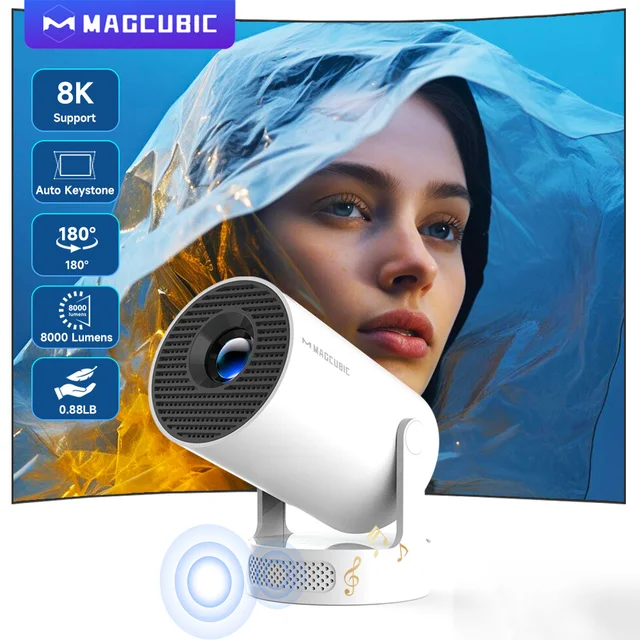
Experience the ultimate visual and audio entertainment with the Magcubic 8K HY300 Pro Portable Projector. Transform any space into a cinema-quality viewing experience with vibrant colors, precision clarity, and powerful stereo sound.
Please note: A small number of Allwinner 713 chip projectors may send out
Smart Your Projection, Match Your Scene
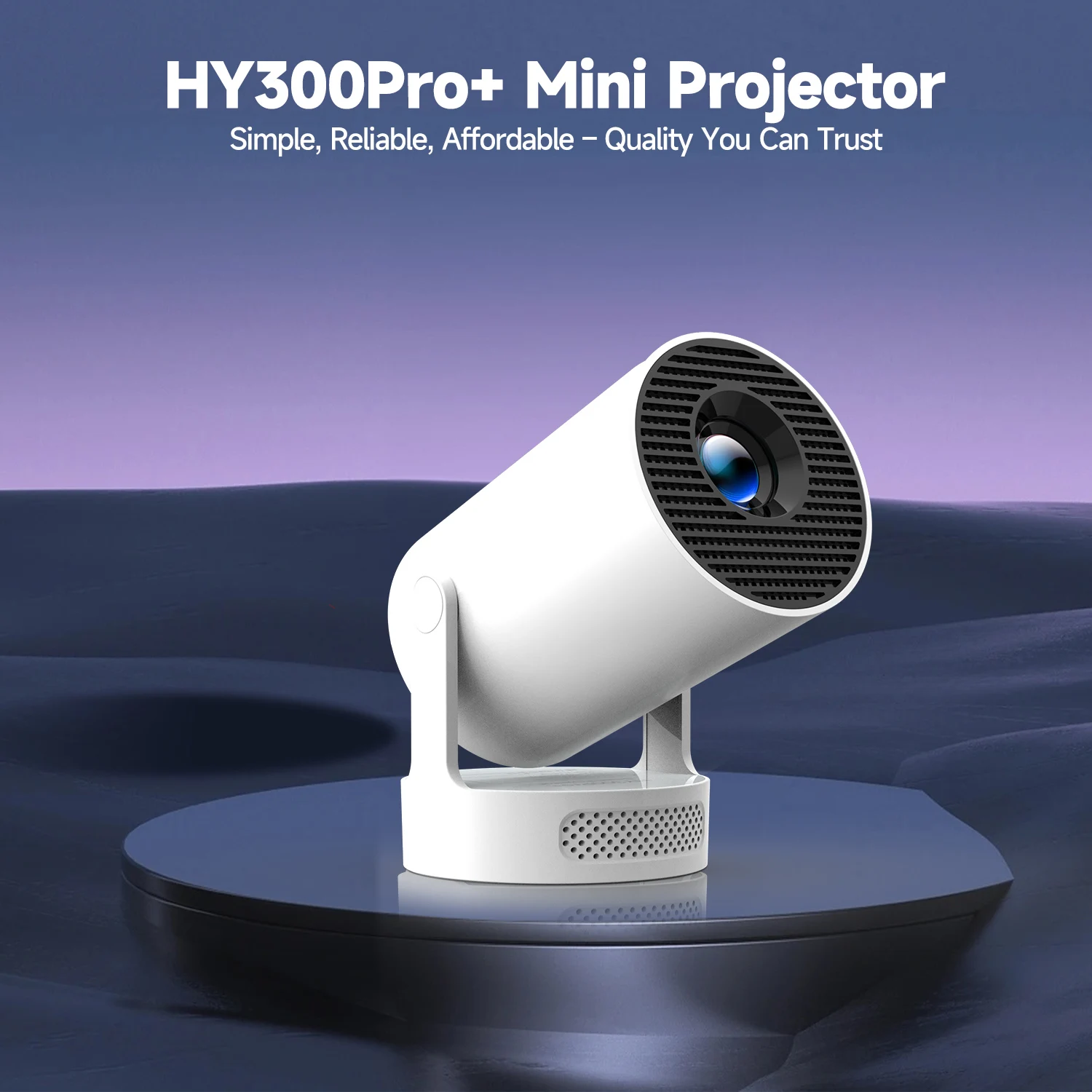
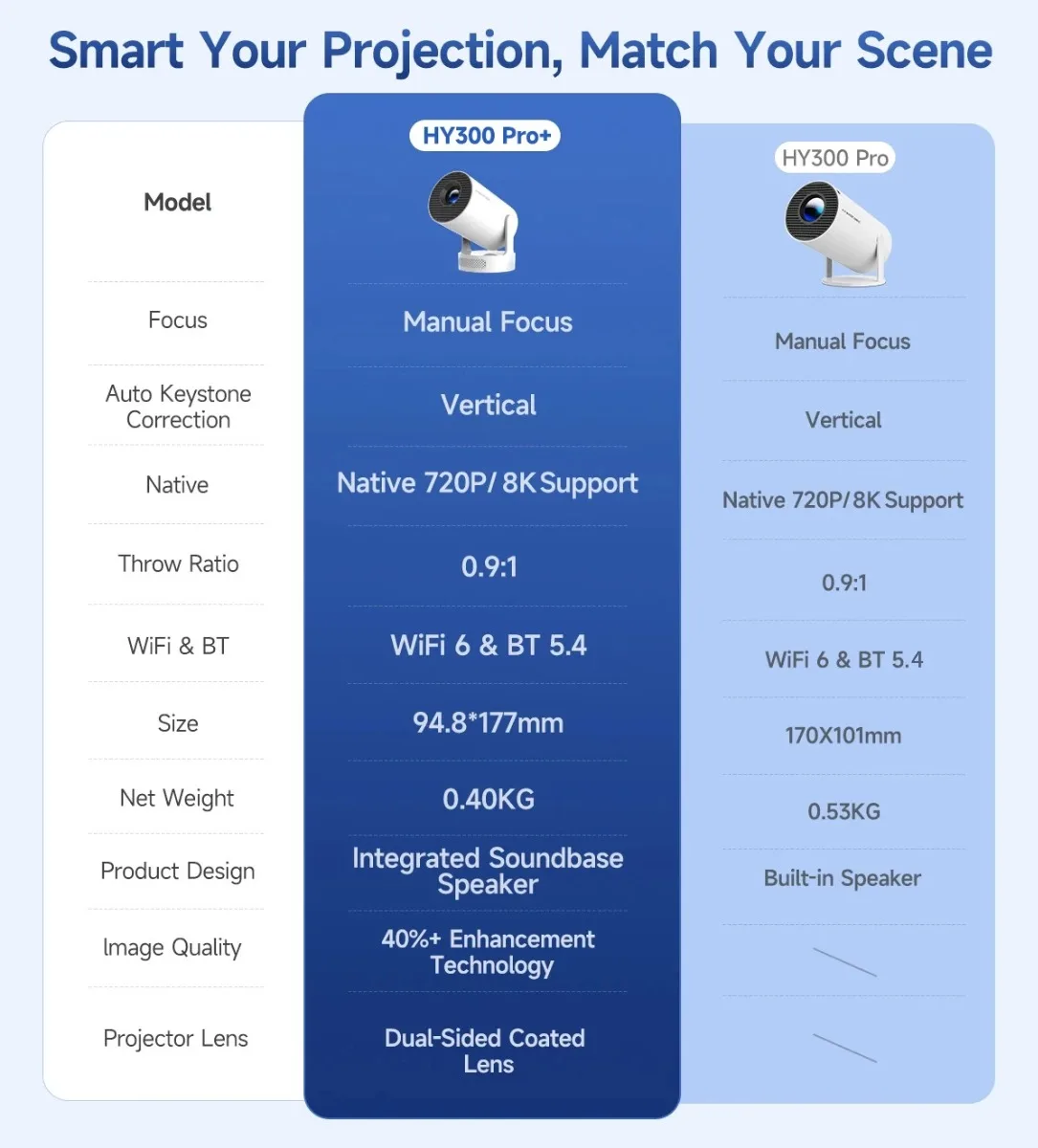 HY300Pro+ Mini Projector
Simple, Reliable, Affordable – Quality You Can Trust
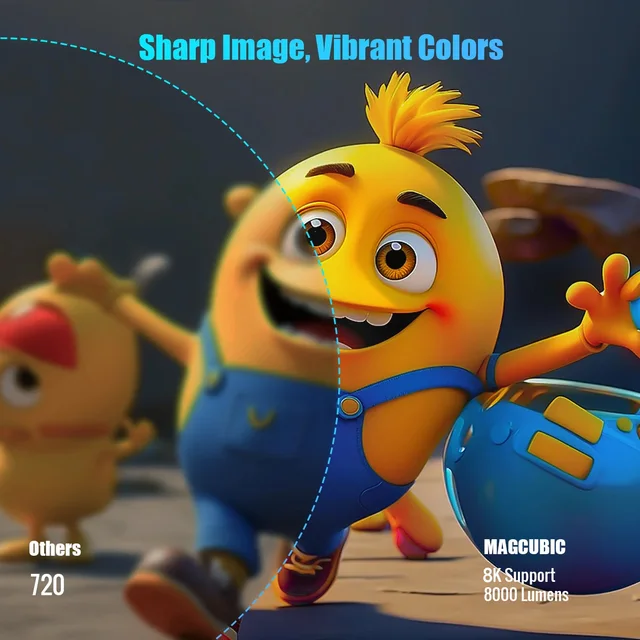
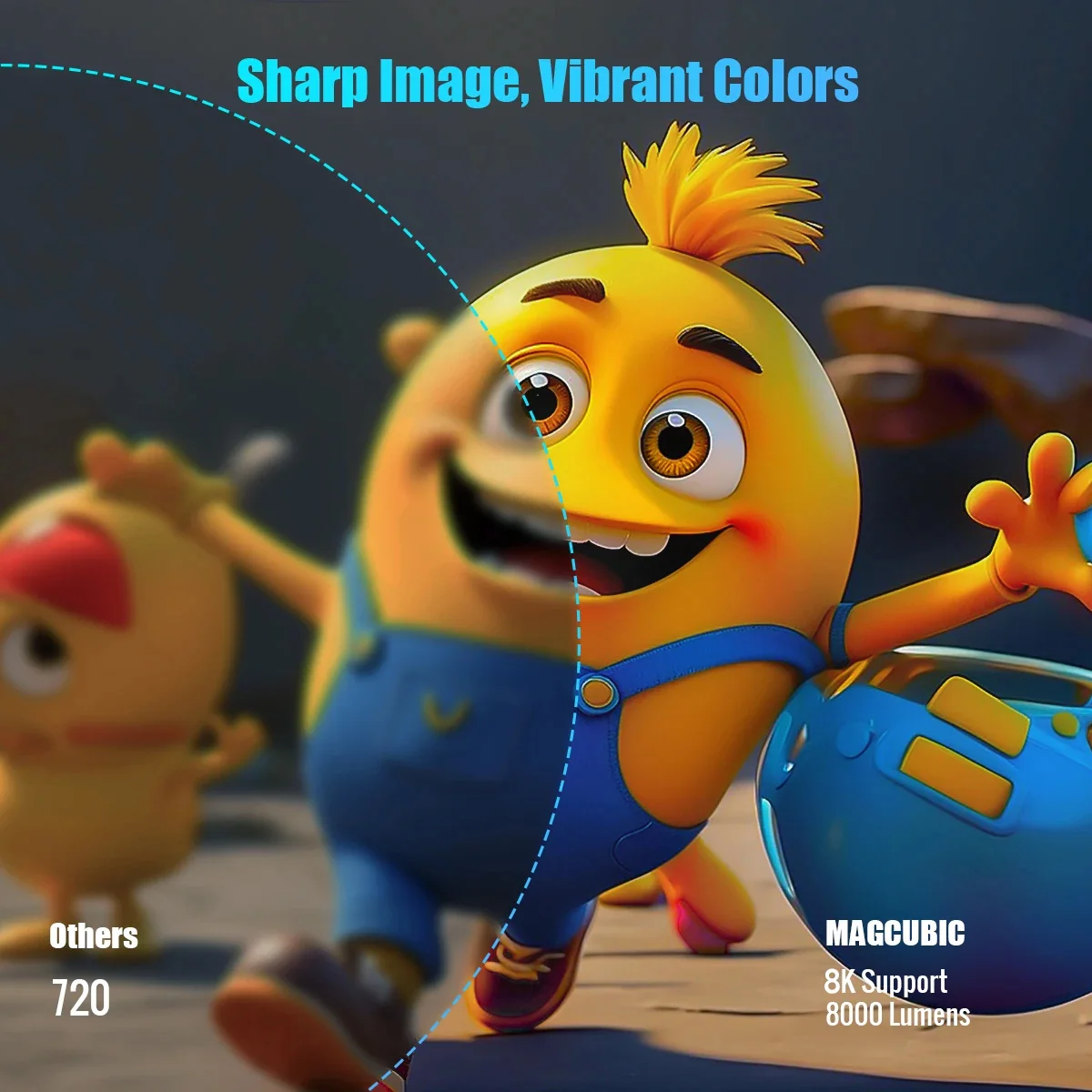
Sharp Image, Vibrant Colors
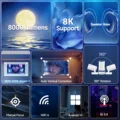
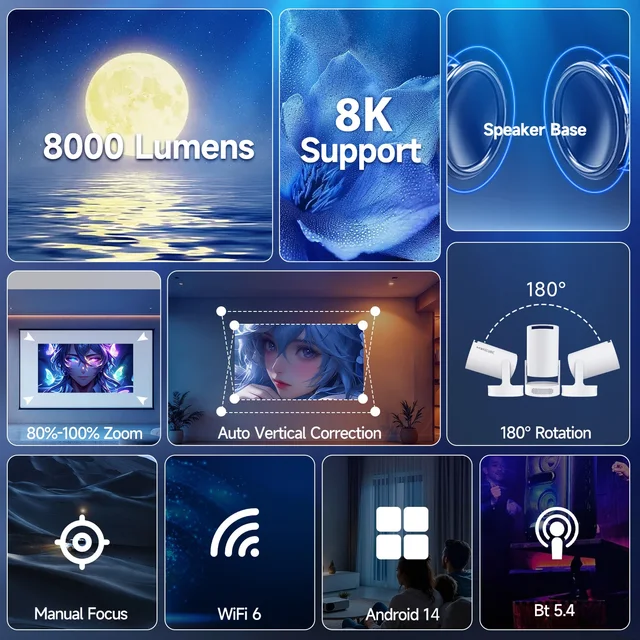
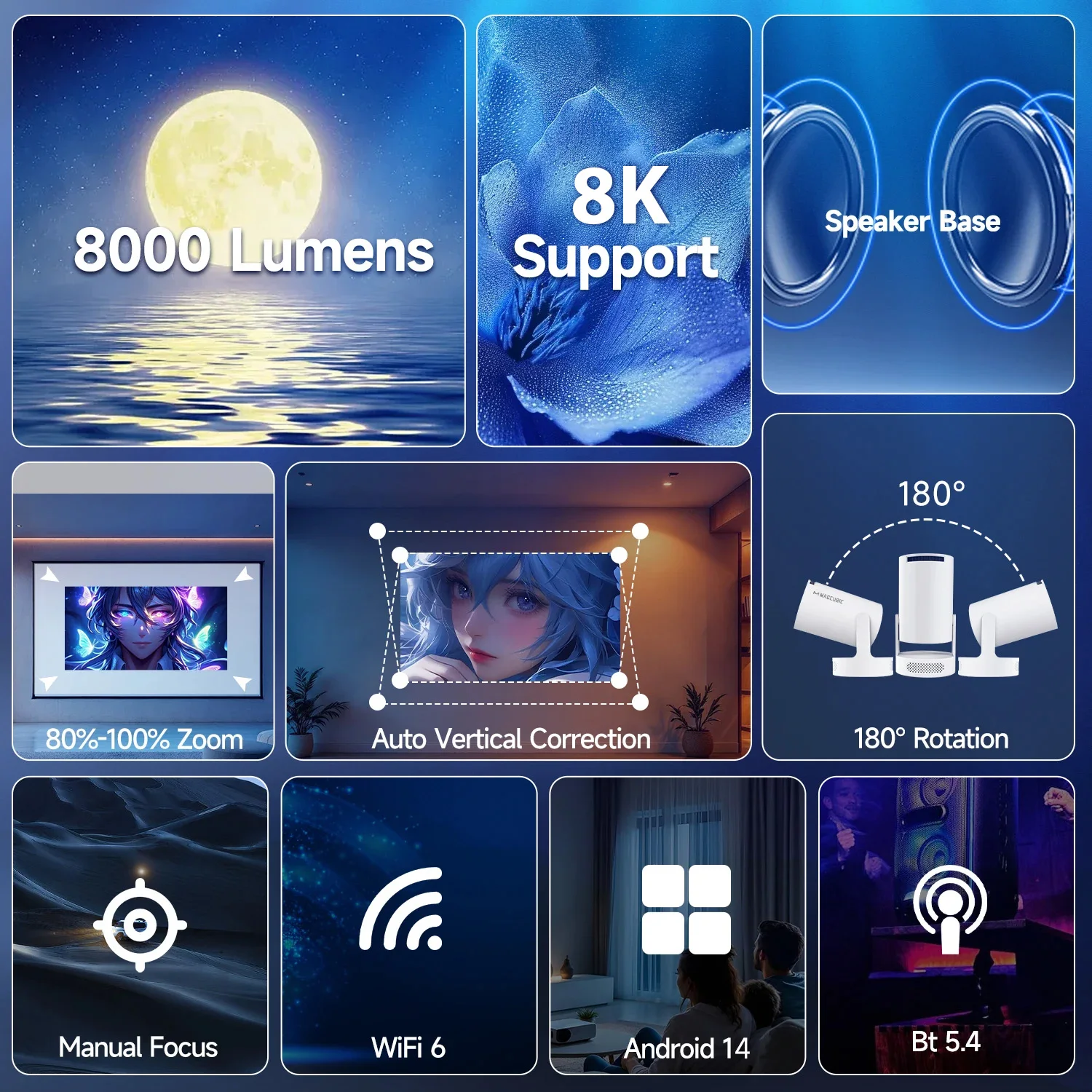
8K Support & 8000 Lumens
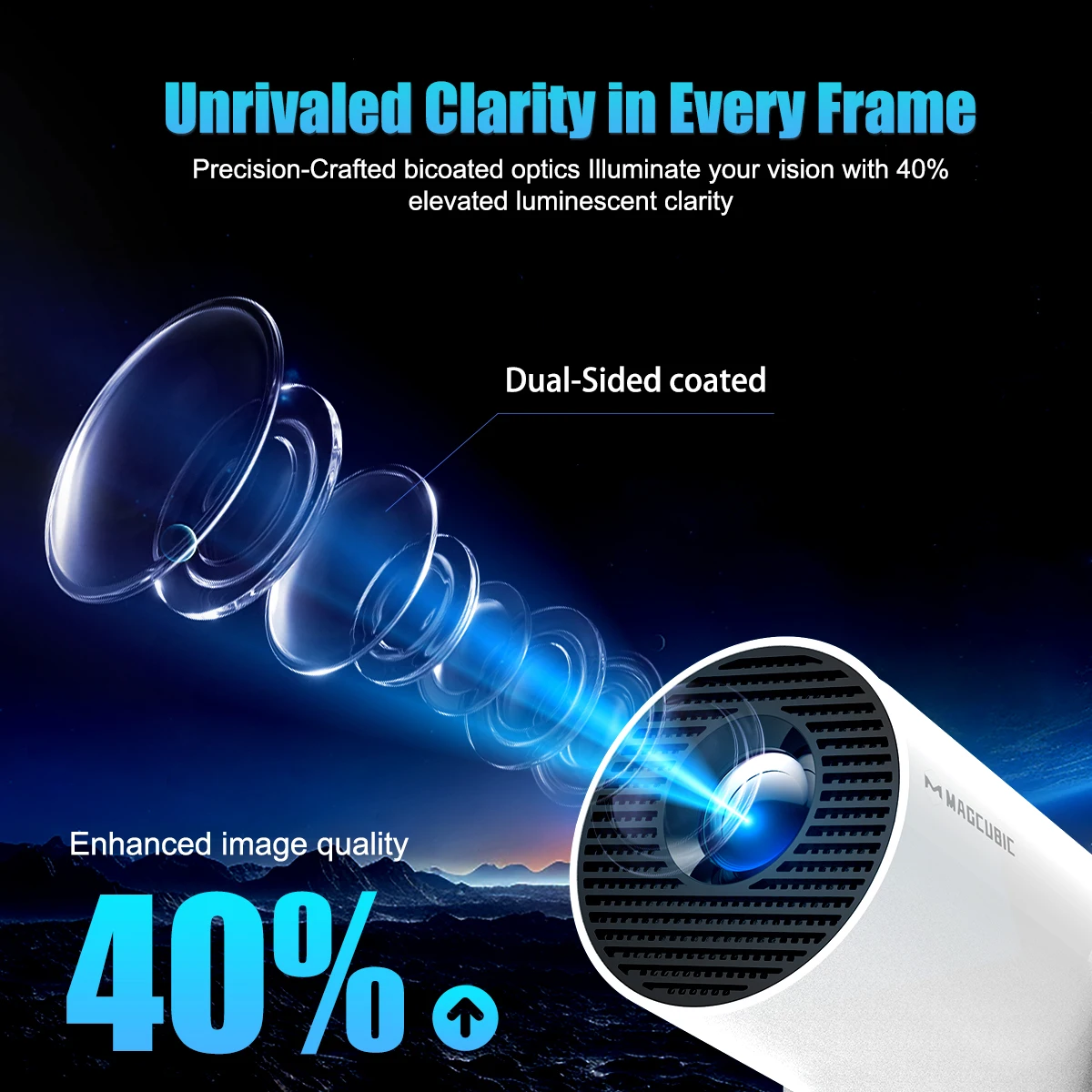
Unrivaled Clarity in Every Frame
Precision-Crafted bicoated optics Illuminate your vision with 40% elevated luminescent clarity
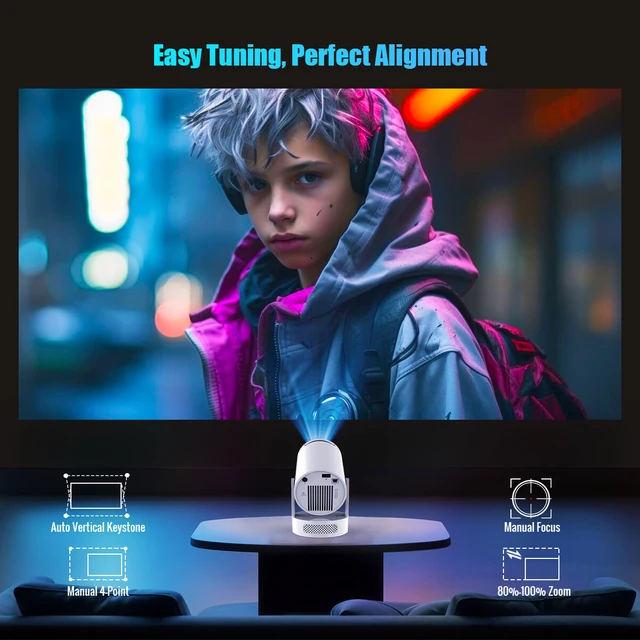
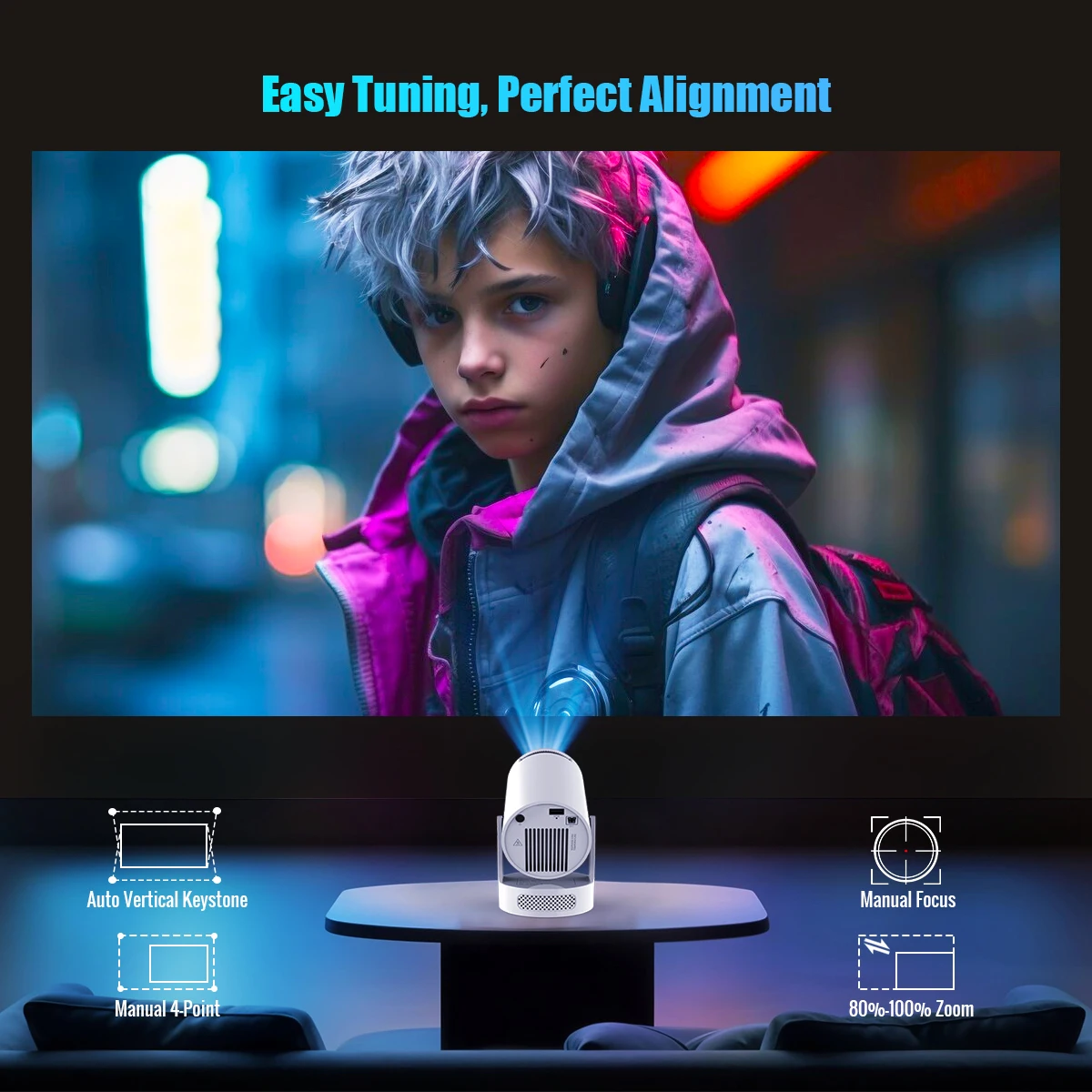
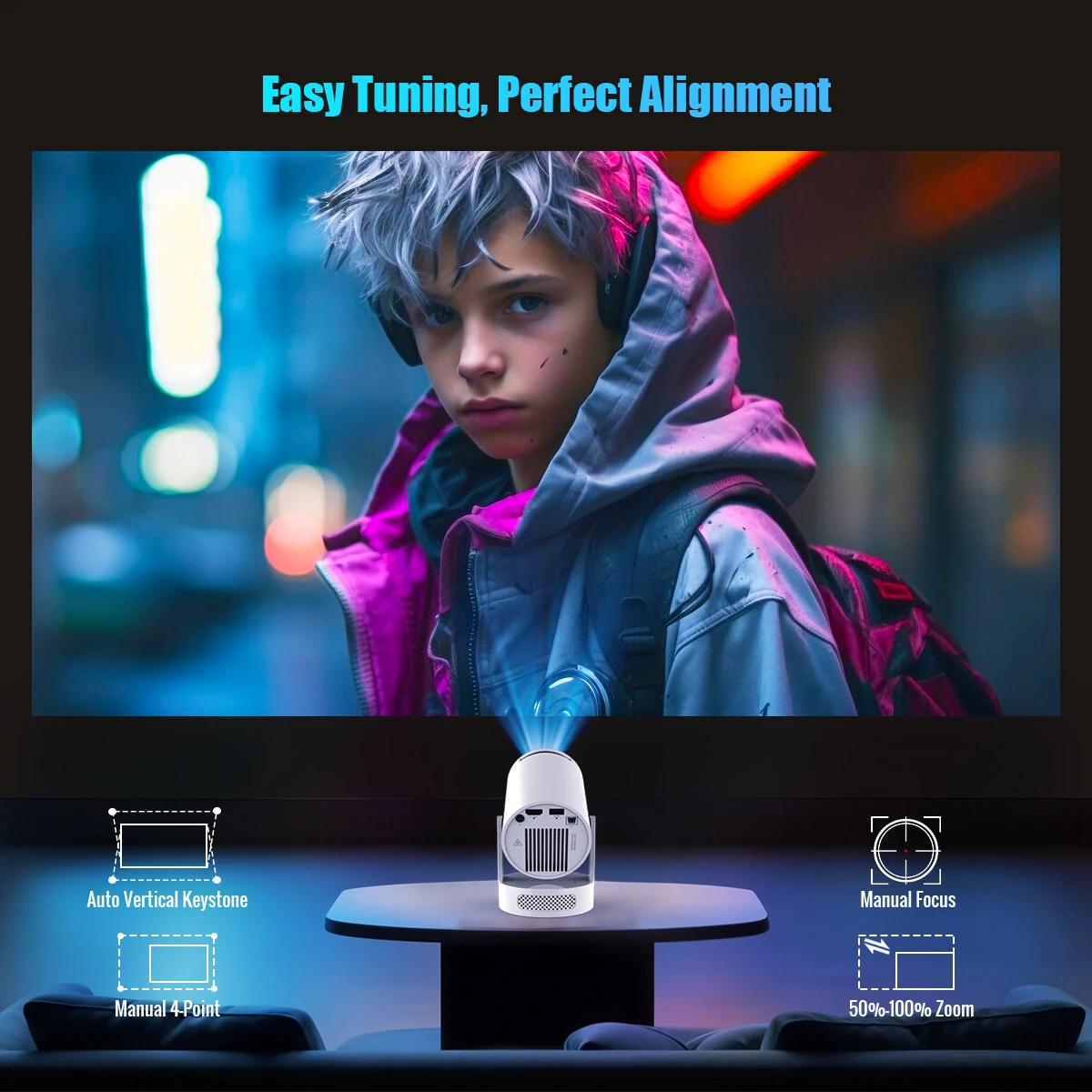
Easy Tuning, Perfect Alignment
Auto Vertical Keystone & Manual 4-Point & Manual Focus & 80%-100% Zoom
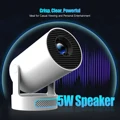
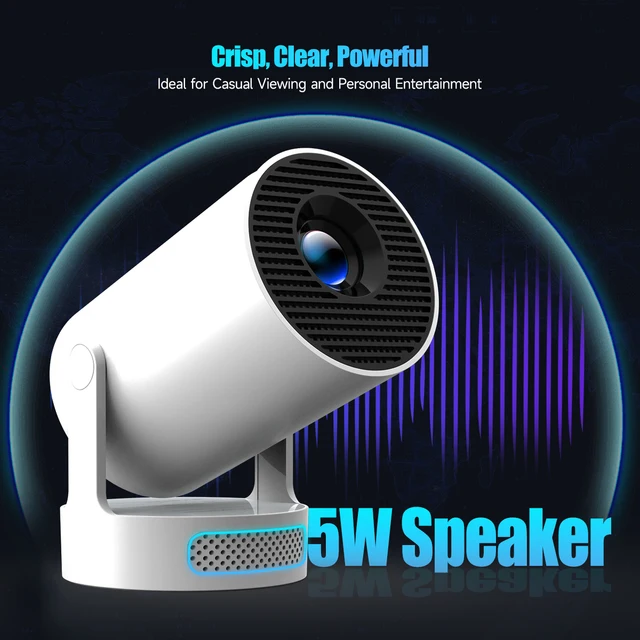
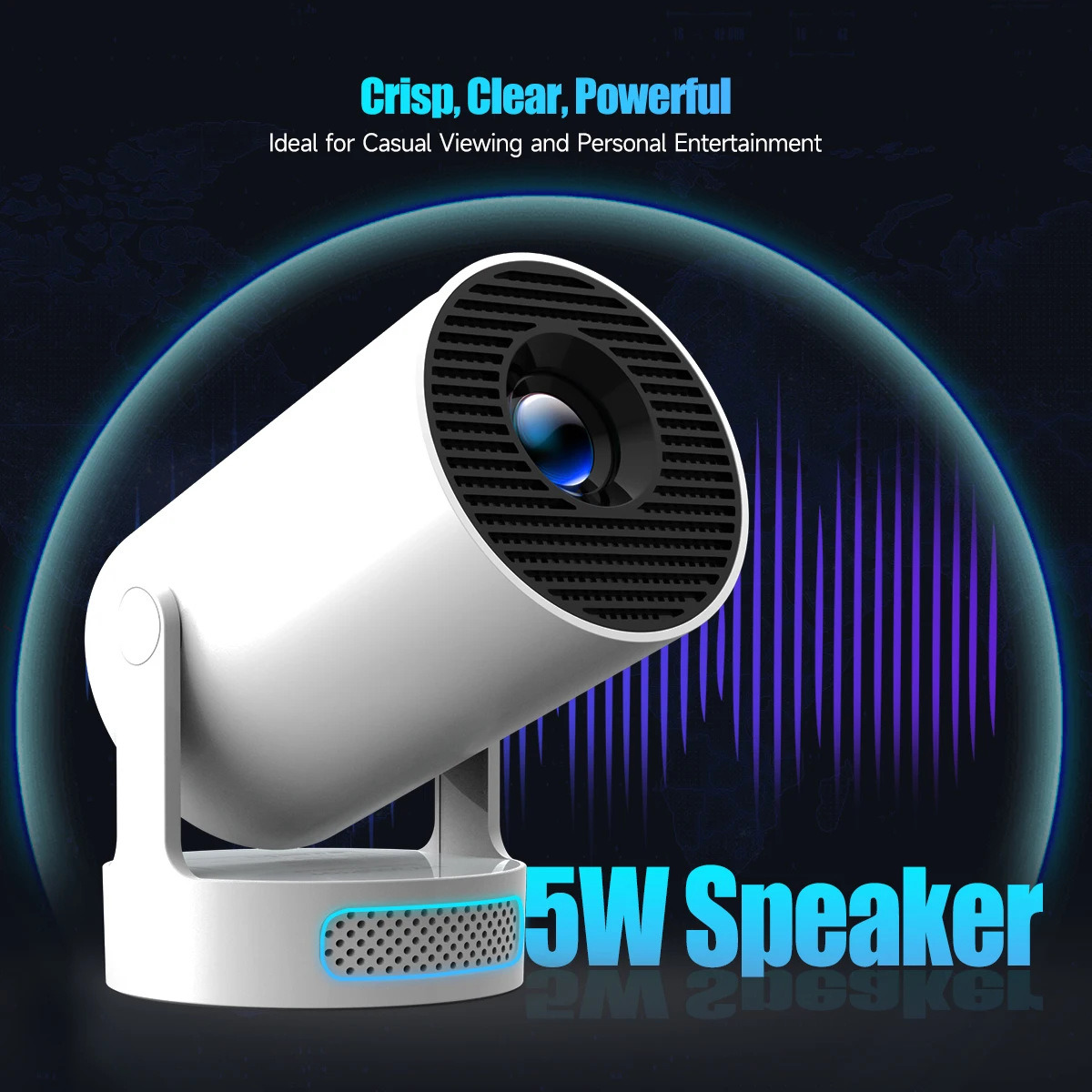
Crisp, Clear, Powerful
Ideal for Casual Viewing and Personal Entertainment
Excellent Stereo Sound
Supports HiFi Audio and is equipped with high-fidelity speakers to provide immersive sound effects

External Power & Cooler Operation
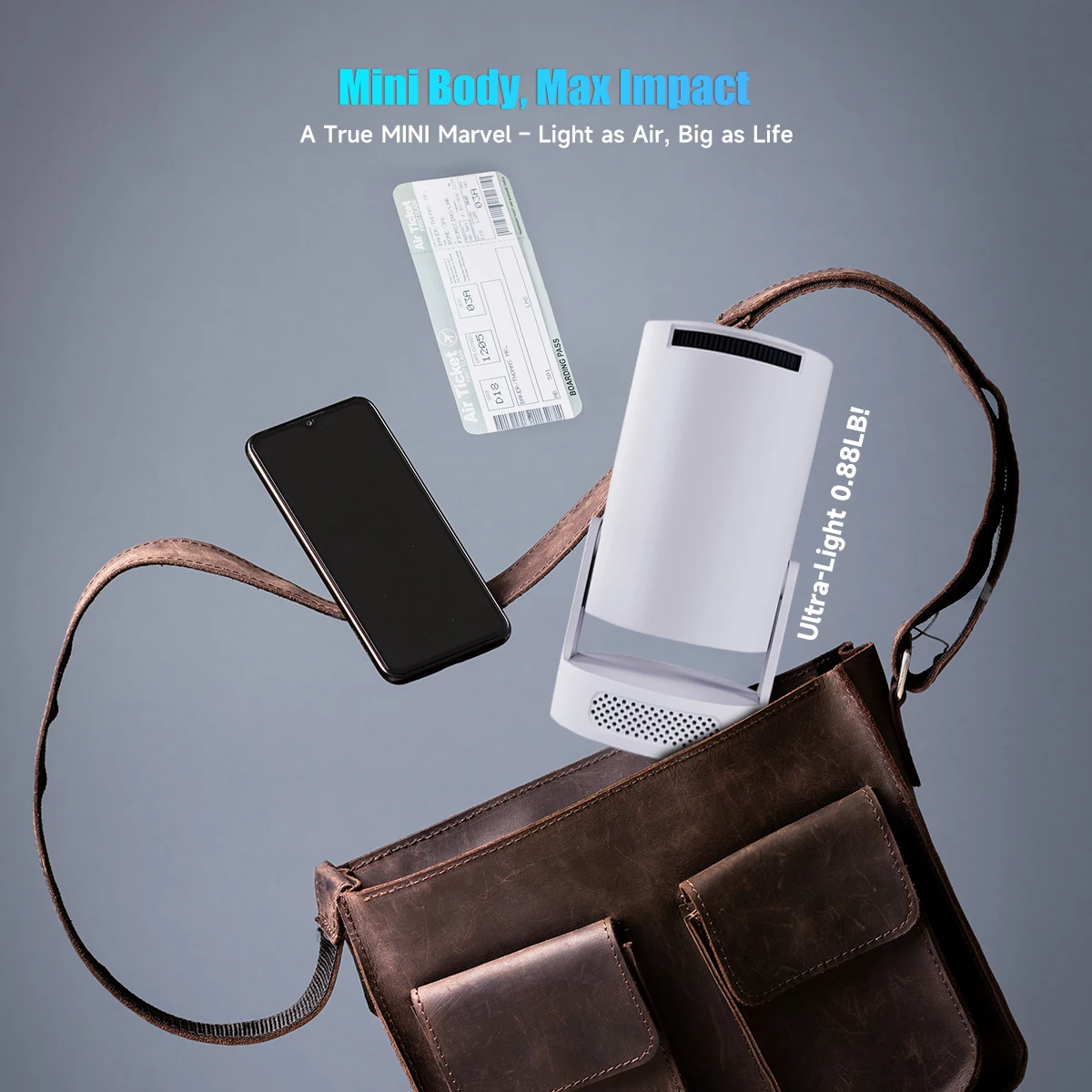
Mini Body, Max Impact
A True MINI Marvel – Light as Air, Big as Life
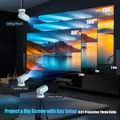
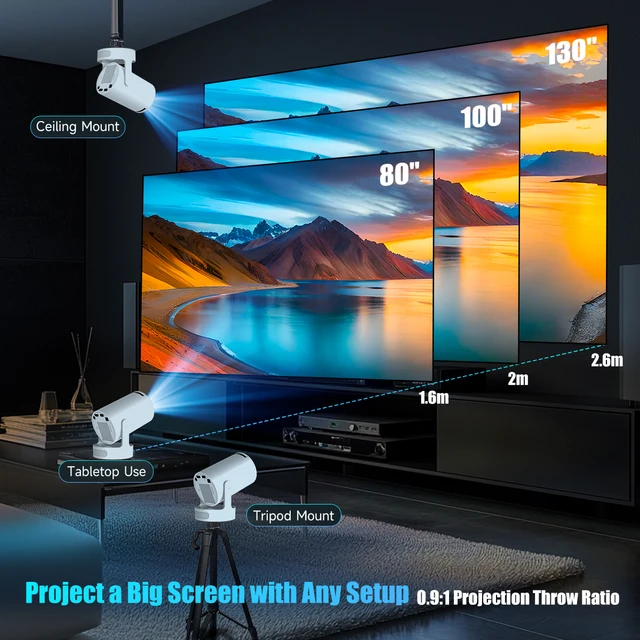
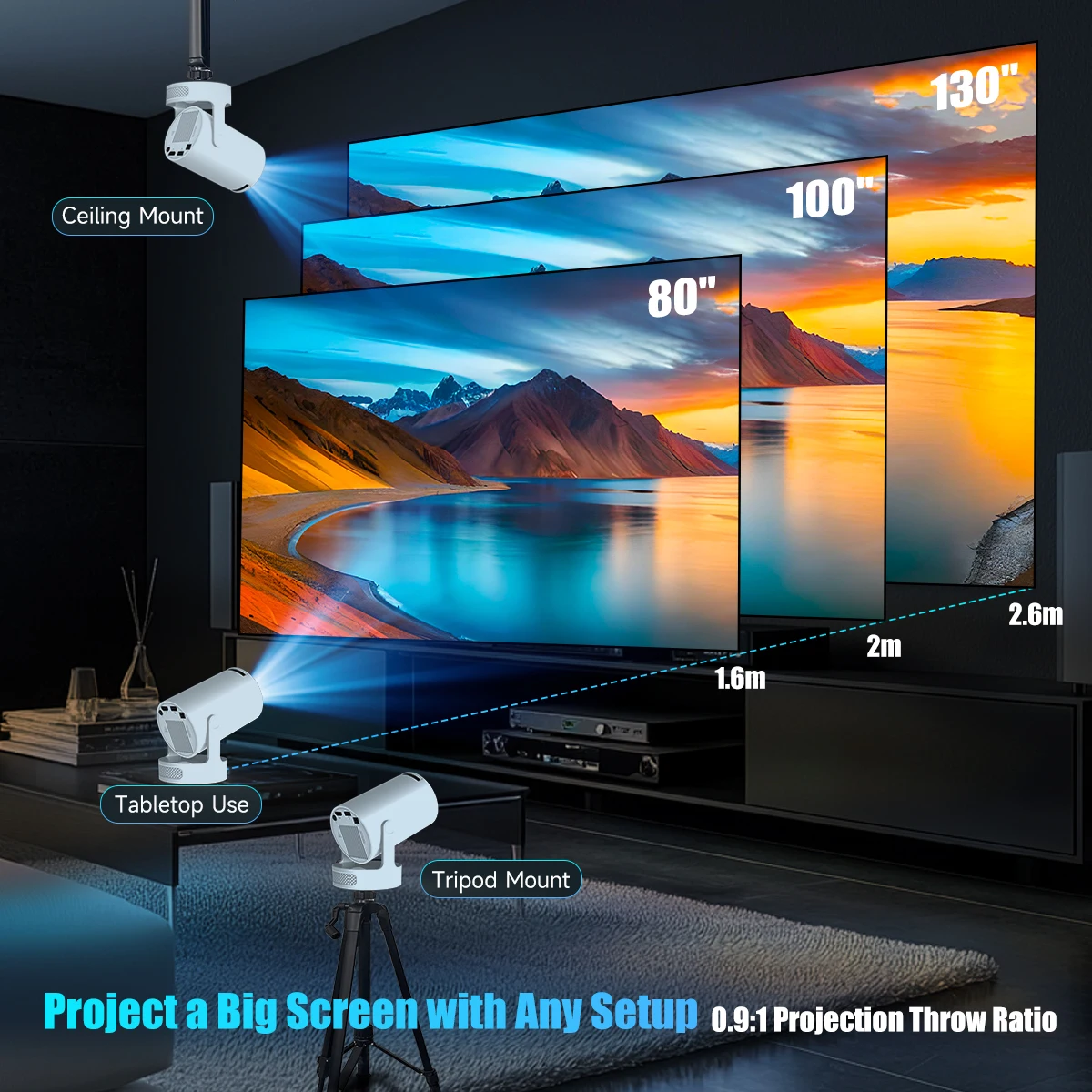
Project a Big Screen with Any Setup
0.9:1 Projection Throw Ratio, The recommended distance is 1.6 M for 80 inch
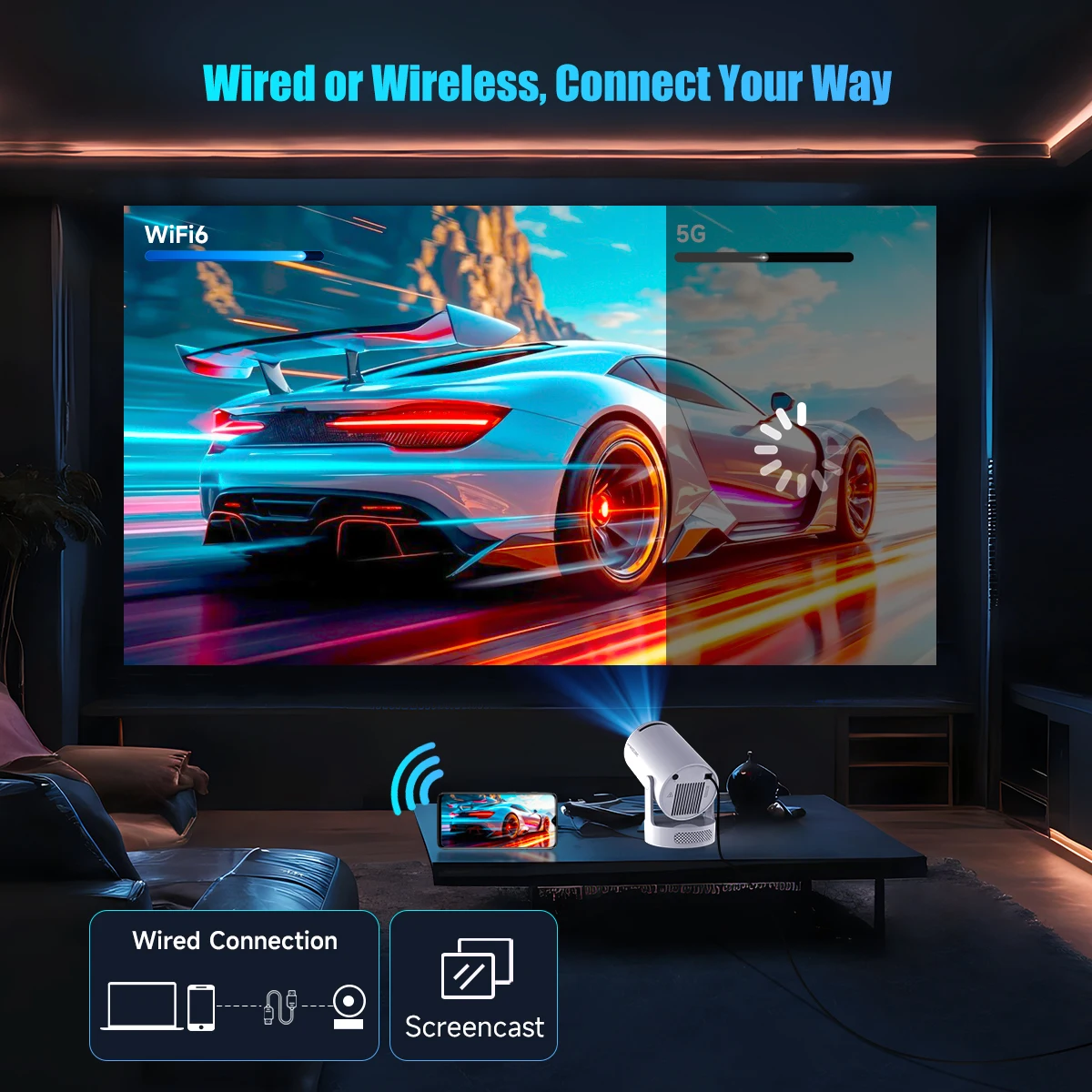
Wired or Wireless, Connect Your Way
Buffer-Free Streaming with Wi-Fi & BT5.4
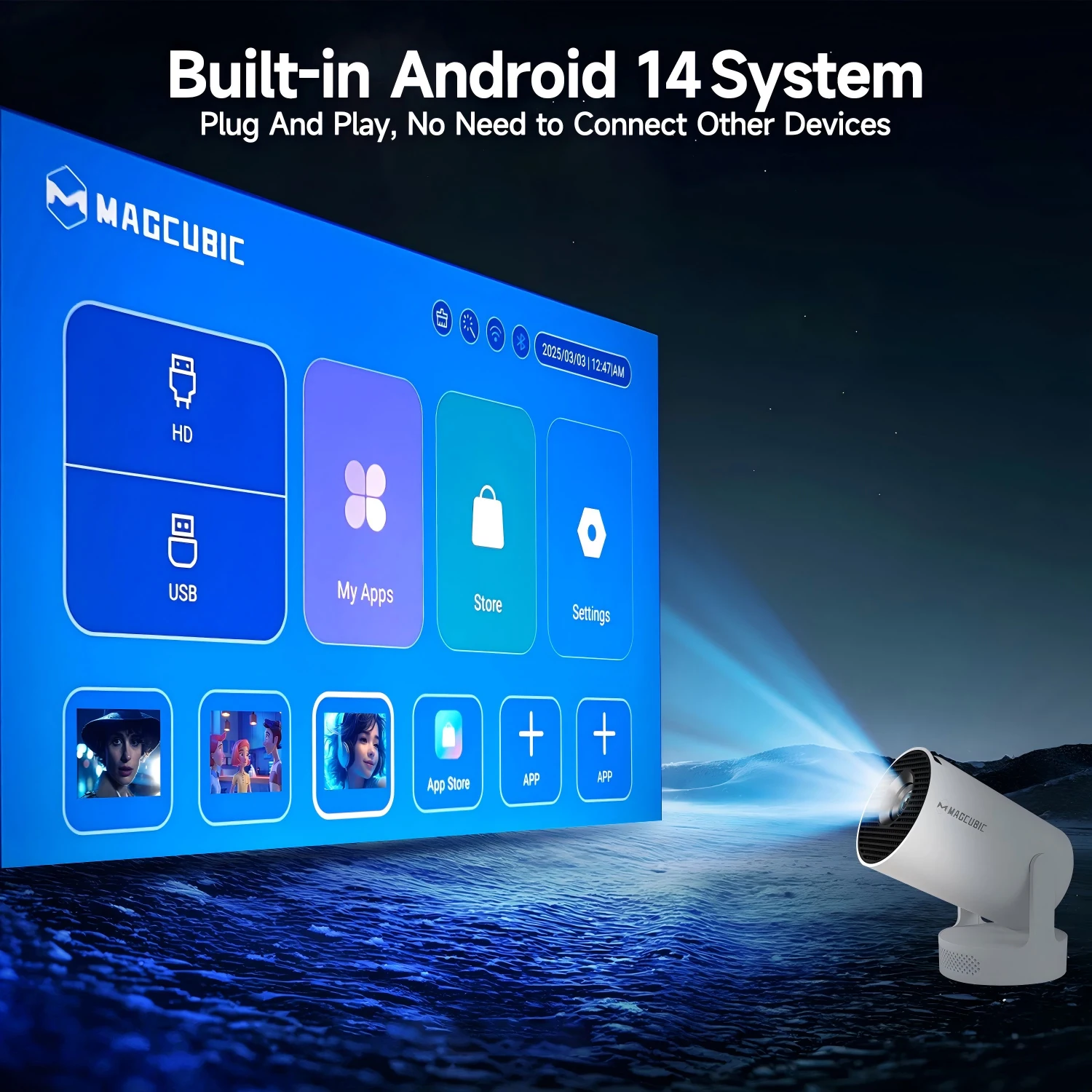
Built-in Android 14 System
Plug And Play, No Need to Connect Other Devices
180° Rotation for Ultimate Flexibility
Project on Walls, Ceilings, or Any Surface You Desire

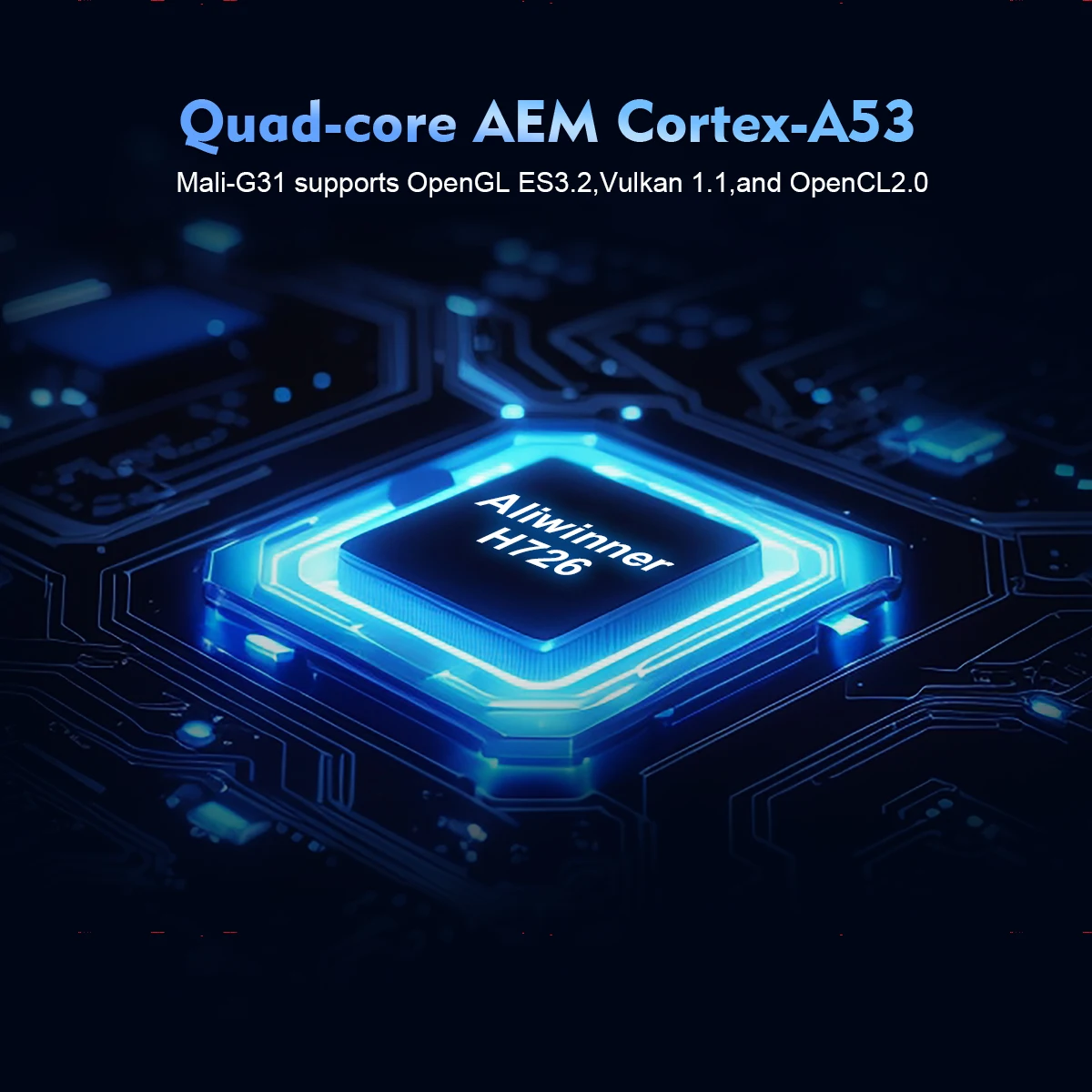
Quad-core AEM Cortex-A53
Mali-G31 supports OpenGL ES3.2,Vulkan 1.1,and OpenCL2.0
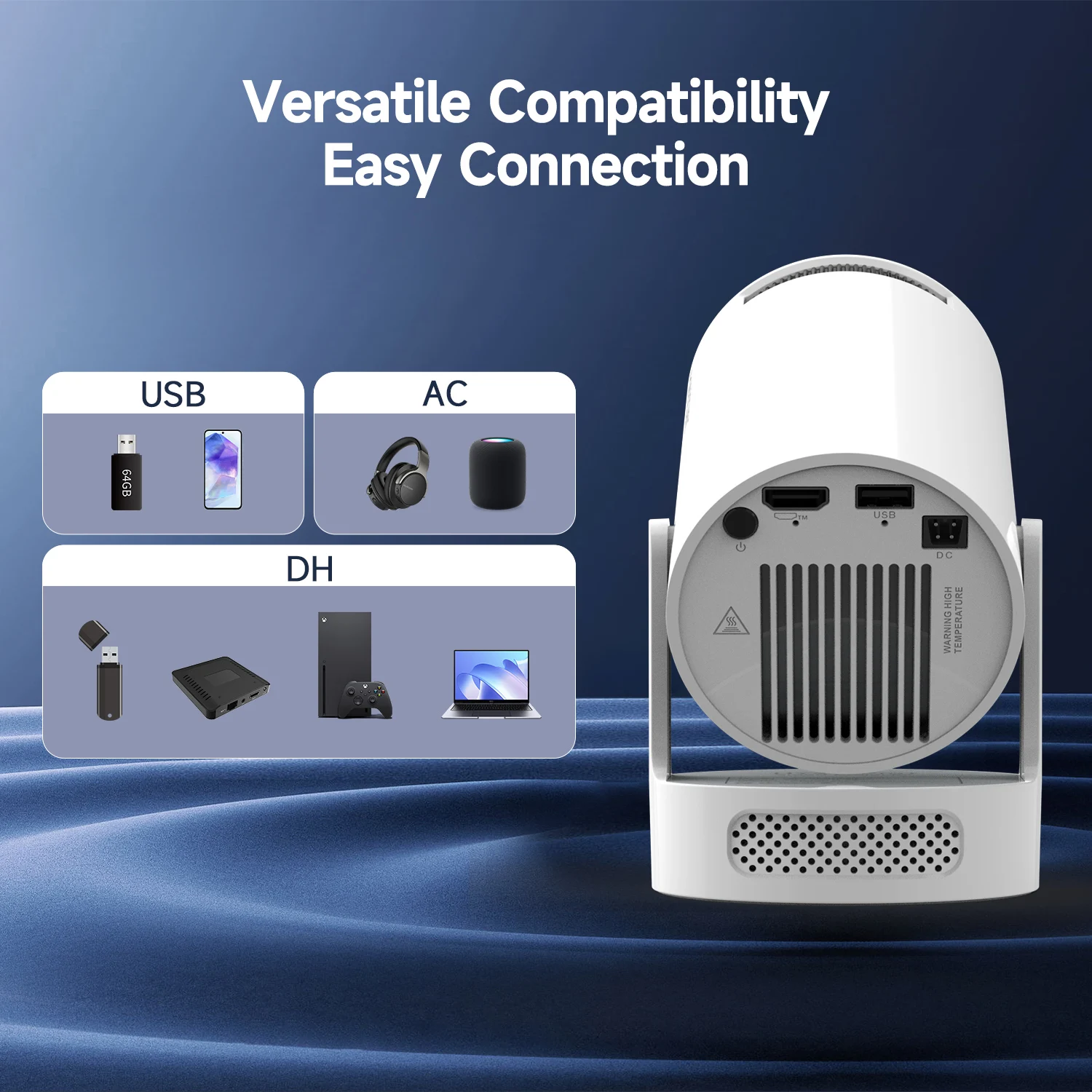
Versatile Compatibility, Easy Connection
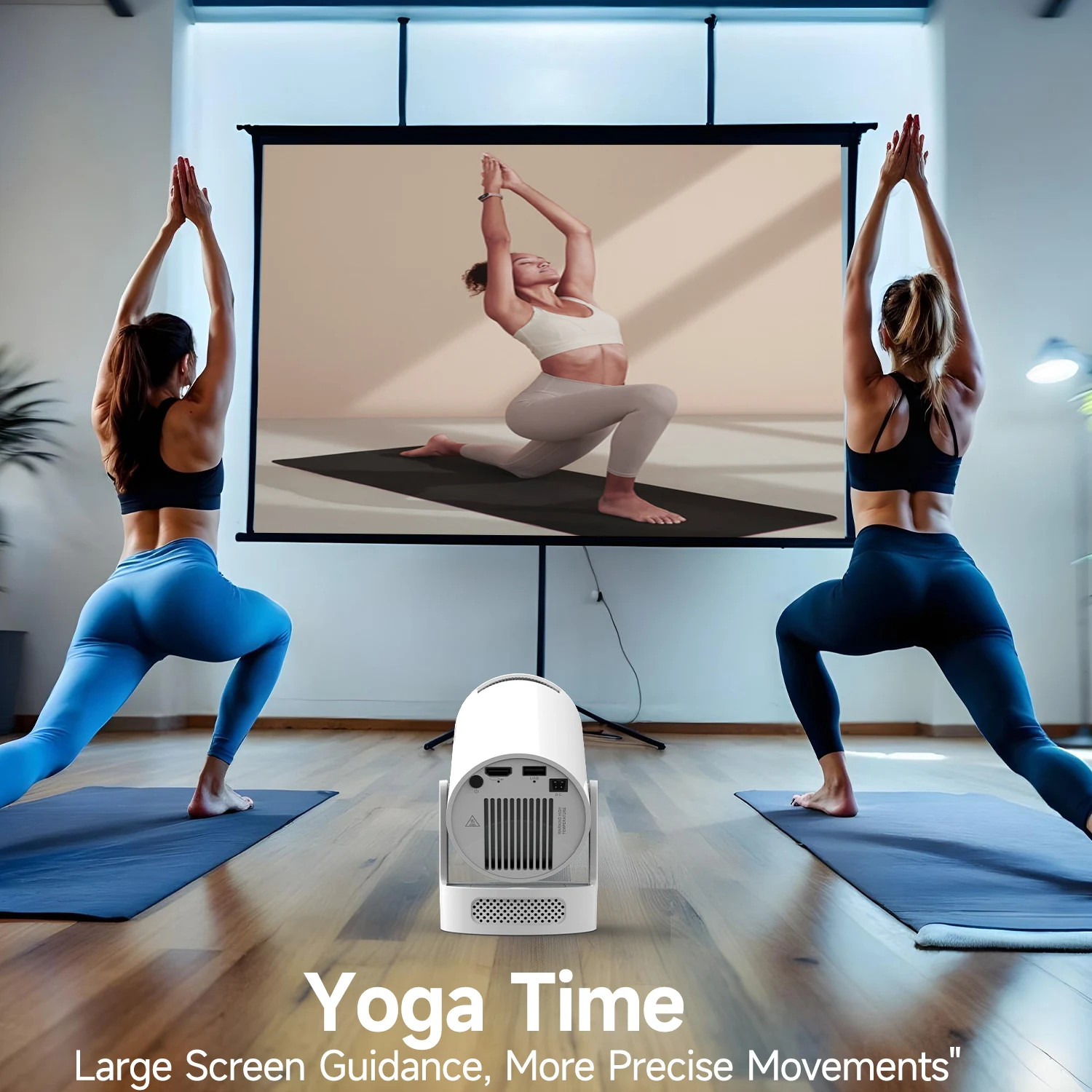
Yoga Time
Large Screen Guidance, More Precise Movements
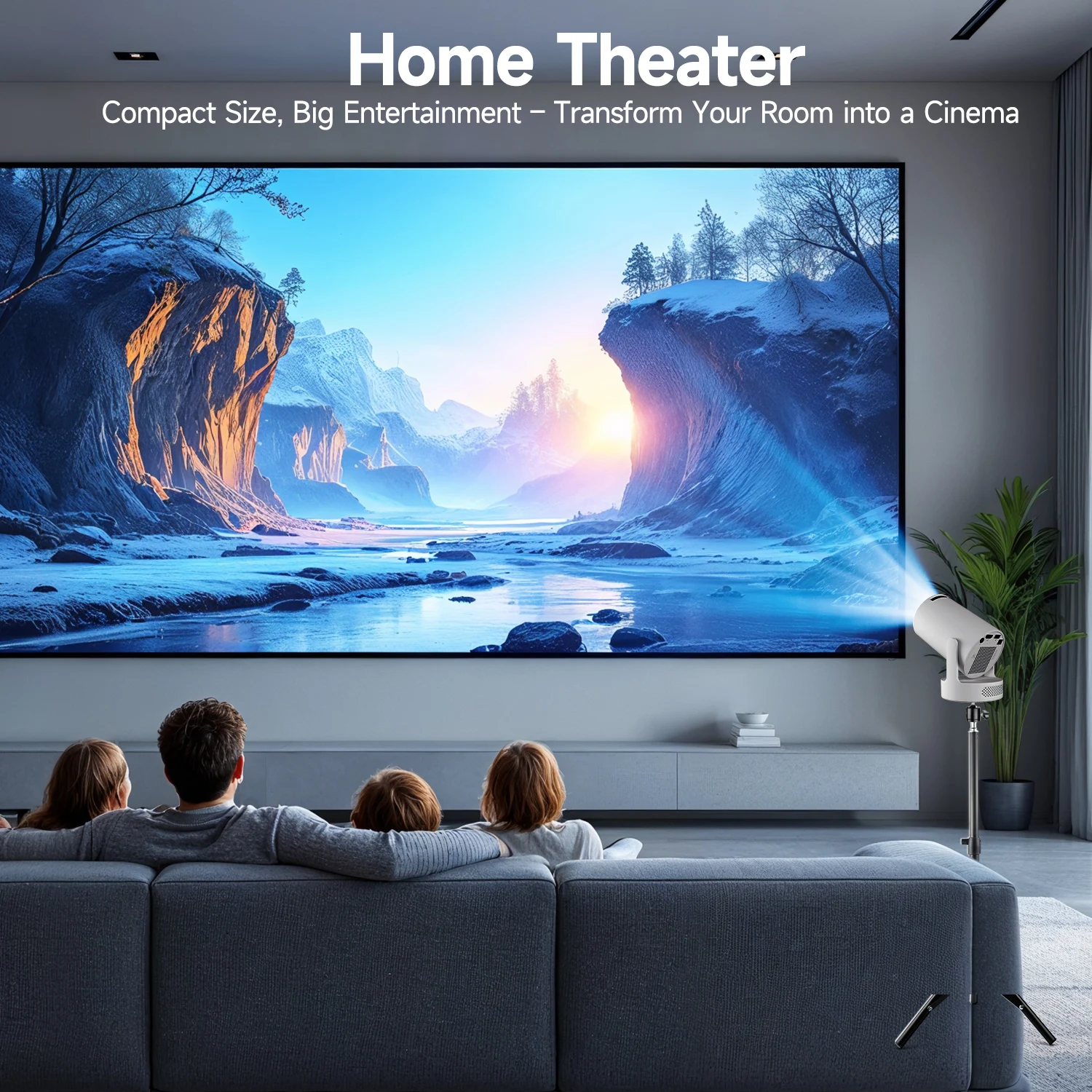
Home Theater
Compact Size, Big Entertainment – Transform Your Room into a Cinema
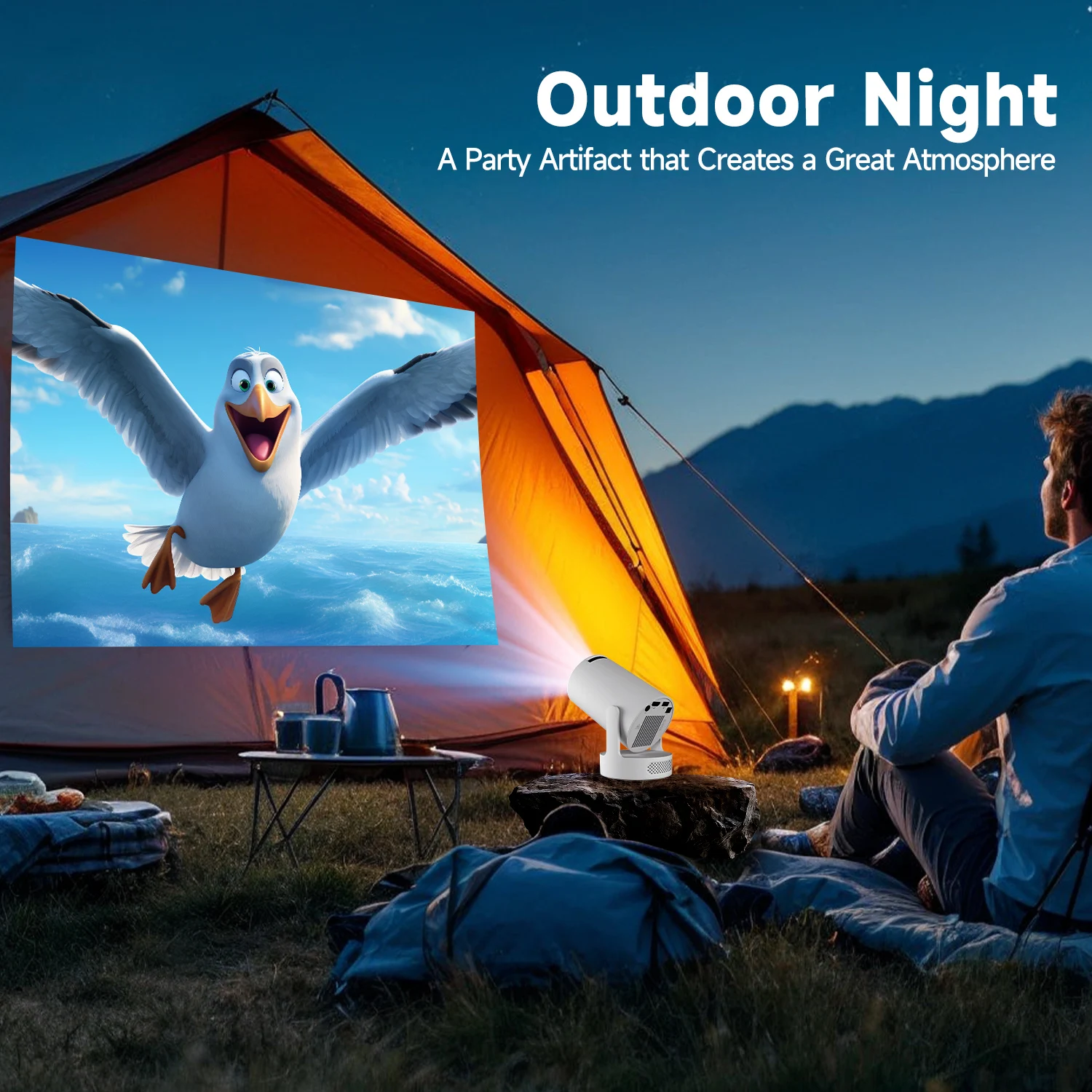
Outdoor Night
A Party Artifact that Creates a Great Atmosphere
Question & Answer
Q1: Why OTA Update Before Use?
A: To ensure optimal performance and take advantage of our latest features and updates, please upgrade to the most recent software version before first use. You can do this by navigating to Settings > About device > Online upgrade.
Q2: Is It Good for Daytime Use?
A: Due to its brightness limitations, the projector is ideal for dark environments, such as a backyard at night, a campsite after sunset, a living room with closed curtains, or a bedroom with the lights turned off.
Q3: Activate Manual Focus?
A: To help you fine-tune the sharpness of your projection, the HY300Pro+ projector features an internal gear mechanism. Simply rotate the gear to adjust the focus and achieve your desired level of clarity.
Q4: How to Get a Square Image?
A: Automatic vertical keystone correction works best when the projector lens is directly facing the wall. If the results are unsatisfactory, follow these steps:
1. Place the projector on a flat surface and ensure the lens is perpendicular to the wall.
2. Navigate to Settings > Projection Settings > Keystone Correction > Initial Angle Correction.
3. If needed, disable the automatic keystone correction and make manual adjustments for optimal alignment.
Q5: Adjust Picture Settings?
A: If the initial image quality is not to your liking, you can fine-tune the display parameters in user mode. Simply navigate to Settings > Projection Settings > Display Settings to customize and optimize your picture settings.
Q6: Can’t Connect to Wi-Fi?
A: 1. Ensure the projector and your router are within 16 feet (5 meters) of each other. Check if other devices connect to Wi-Fi.
2. Check the time zone settings by navigating to Settings > Time and Date > Time Zone and ensure it is accurate.
3. Attempt to connect to a different Wi-Fi network or use your phone's hotspot as an alternative.
4. Test both the 2.4GHz and 5GHz frequency bands on your router.
5. Reset the projector by going to Settings > Other Settings > Restore Factory Settings.
Q7: Screen-Mirror iOS?
A: 1.Ensure your device is updated to the latest version. You can do this by navigating to Settings > About device > Online upgrade.
2.Open the ScreenCast app.
3.Use AirPlay on your iOS device, making sure both devices are connected to the same Wi-Fi network.









Follow us on: