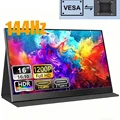
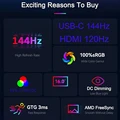
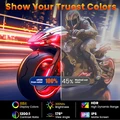
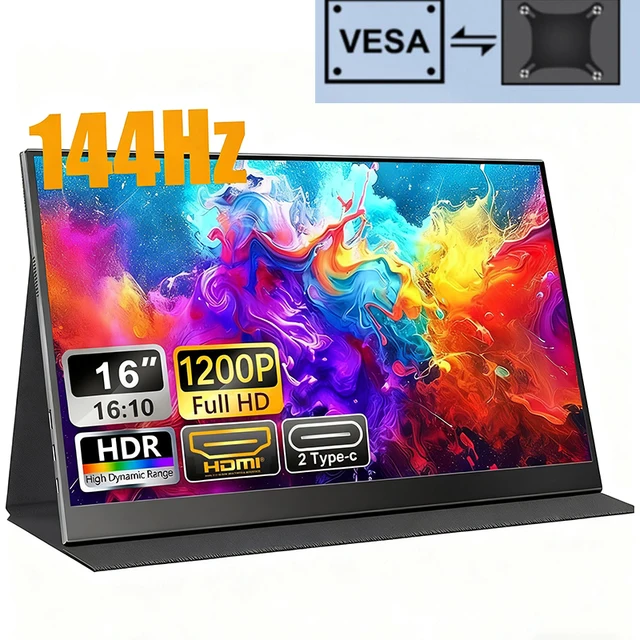
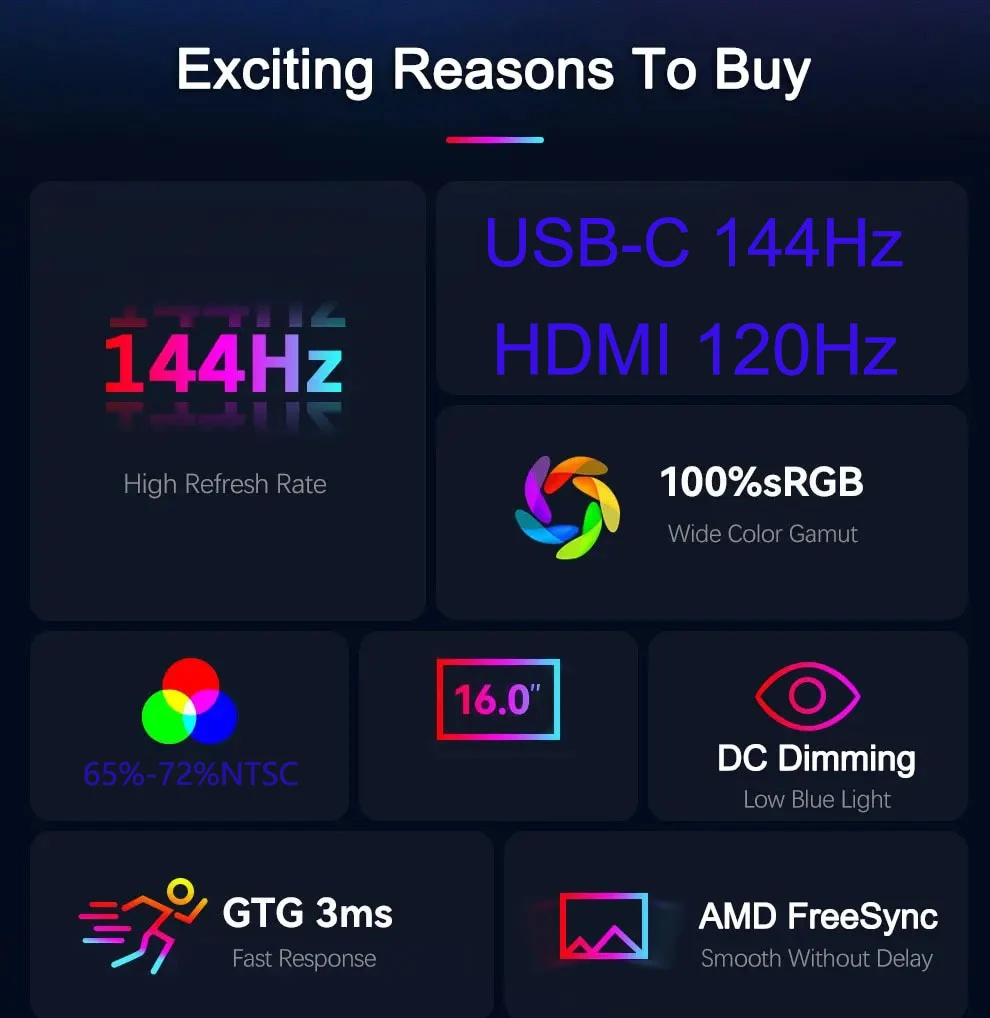
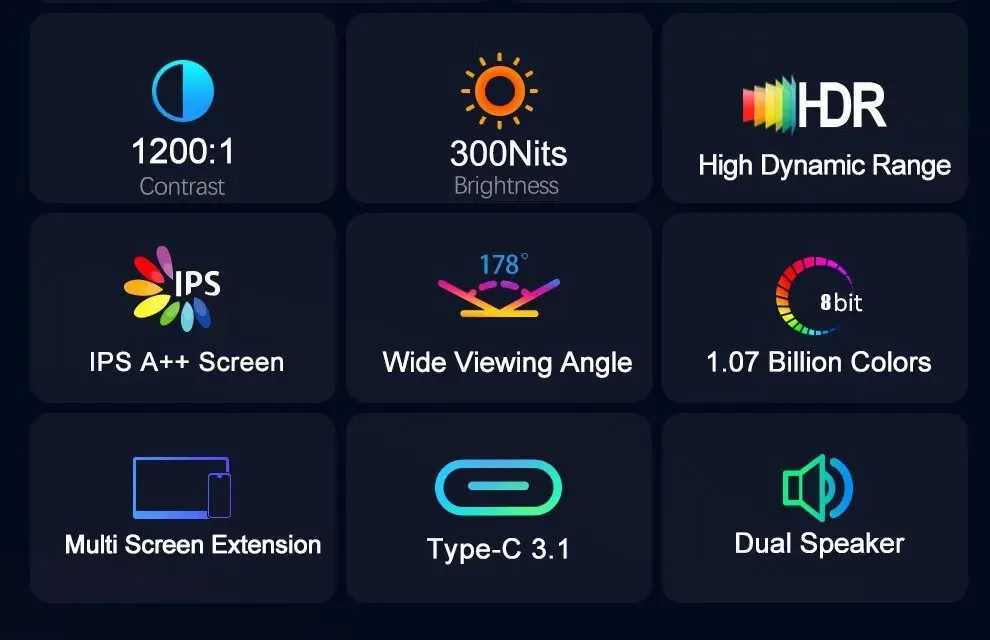
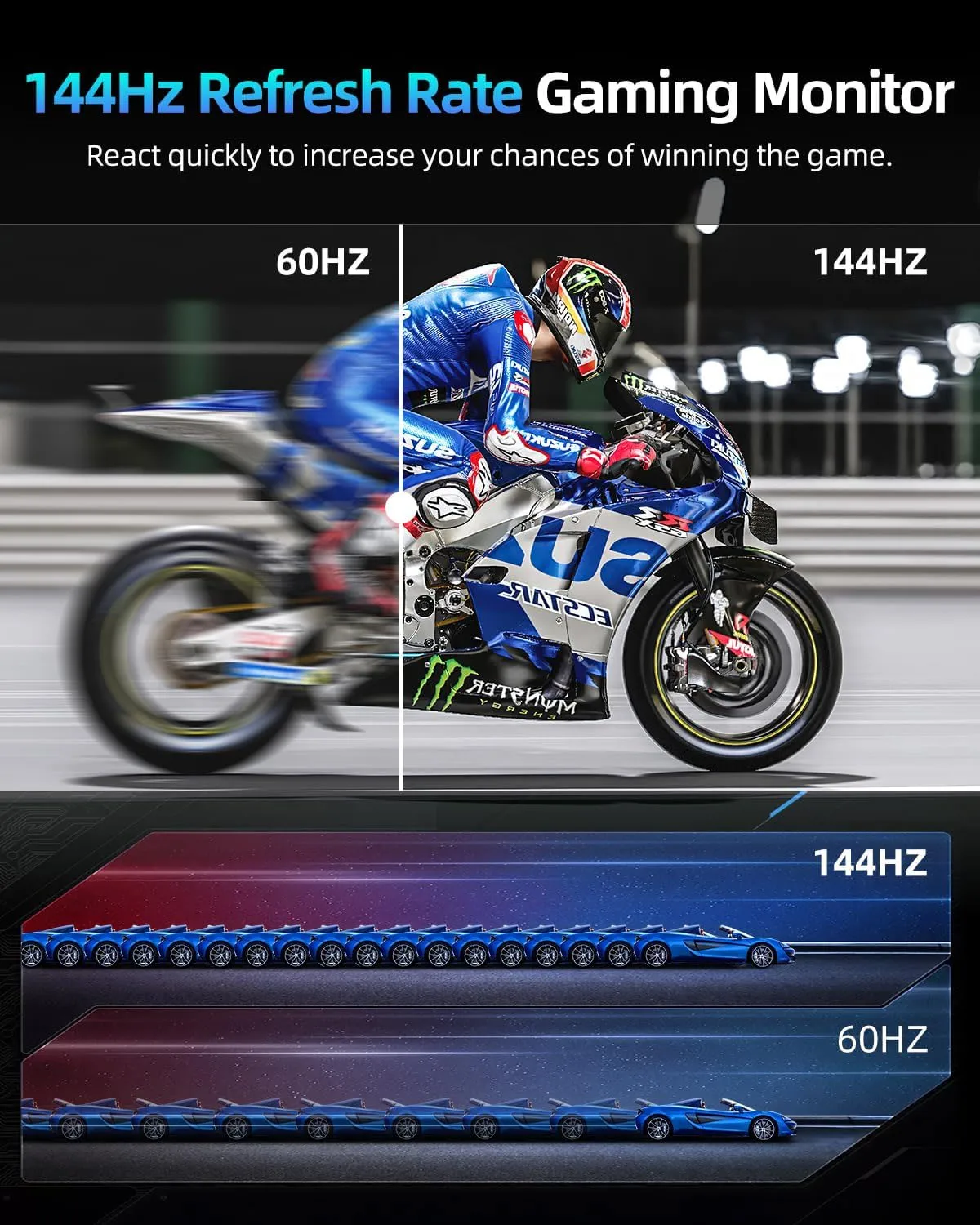
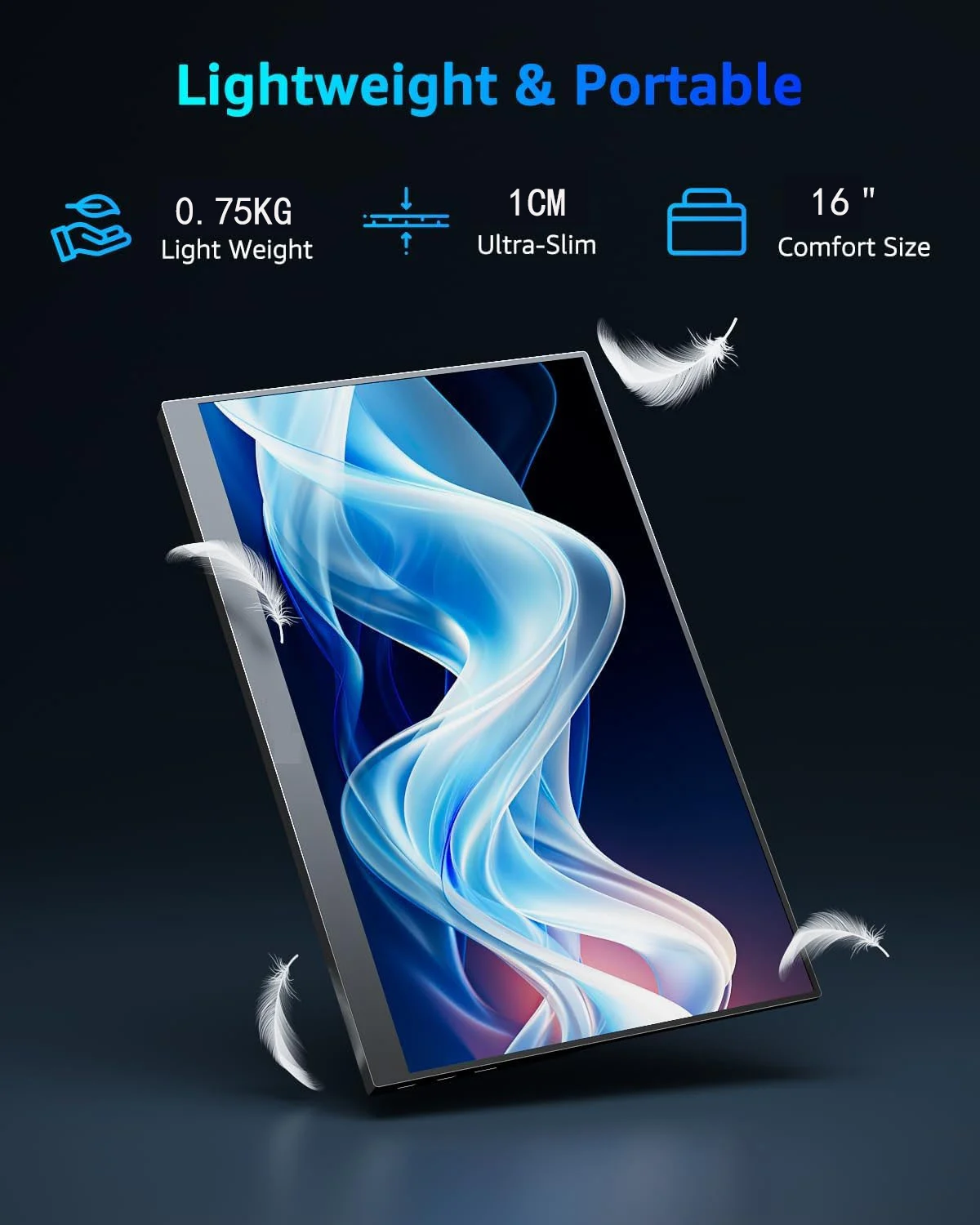
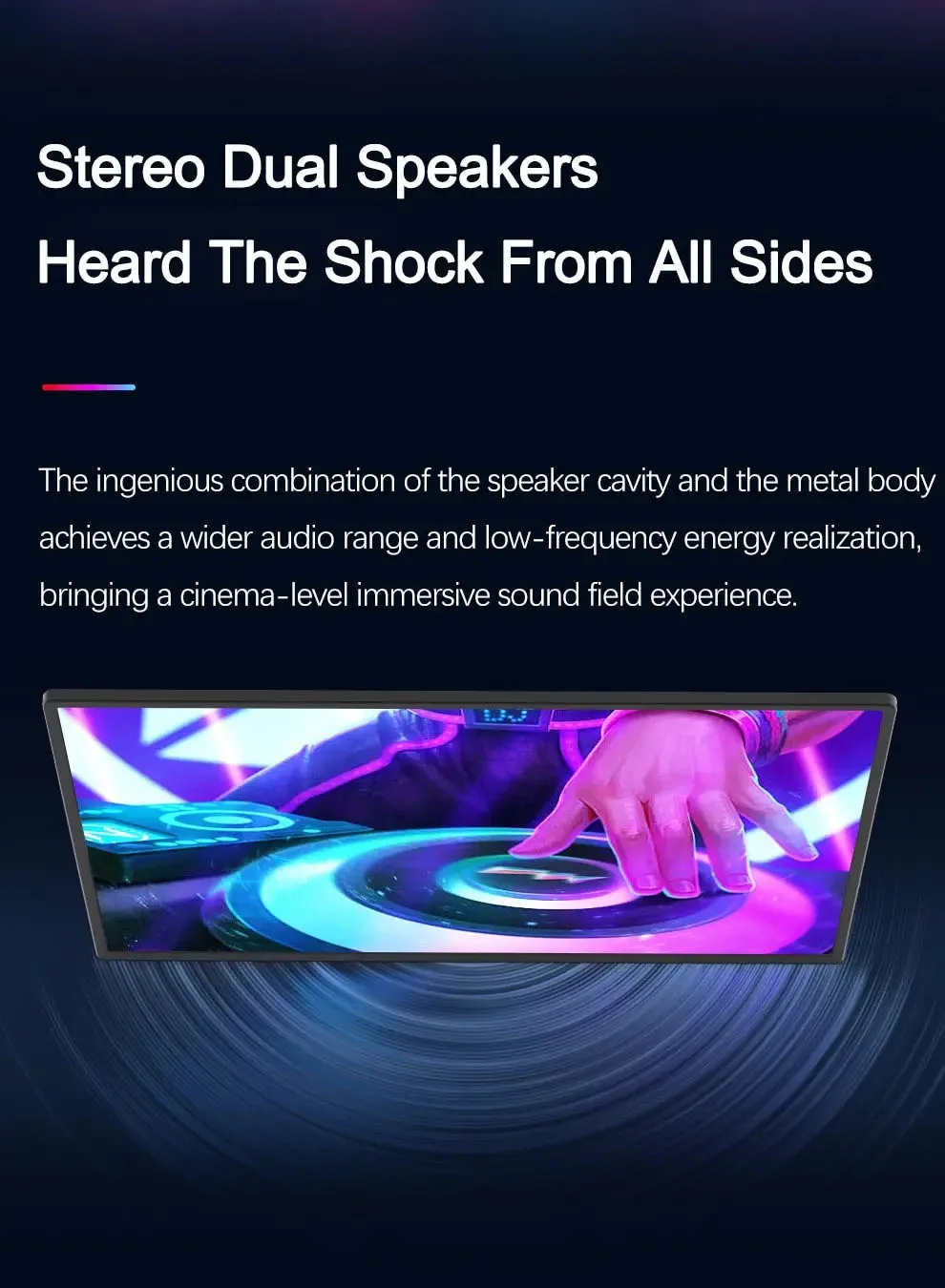
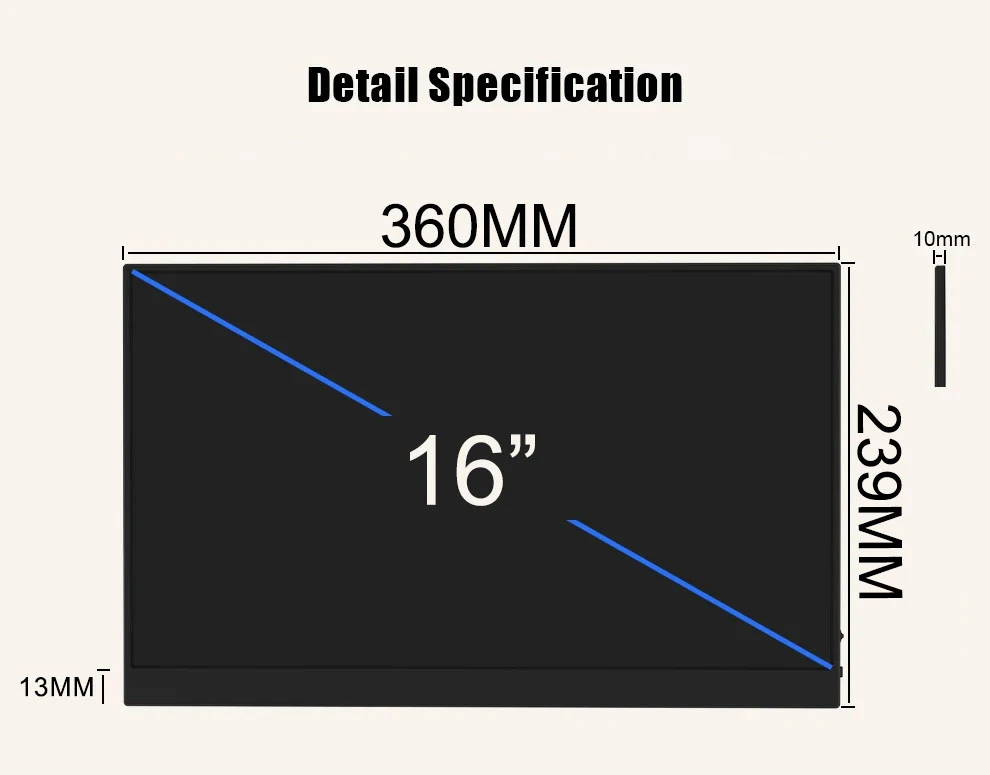
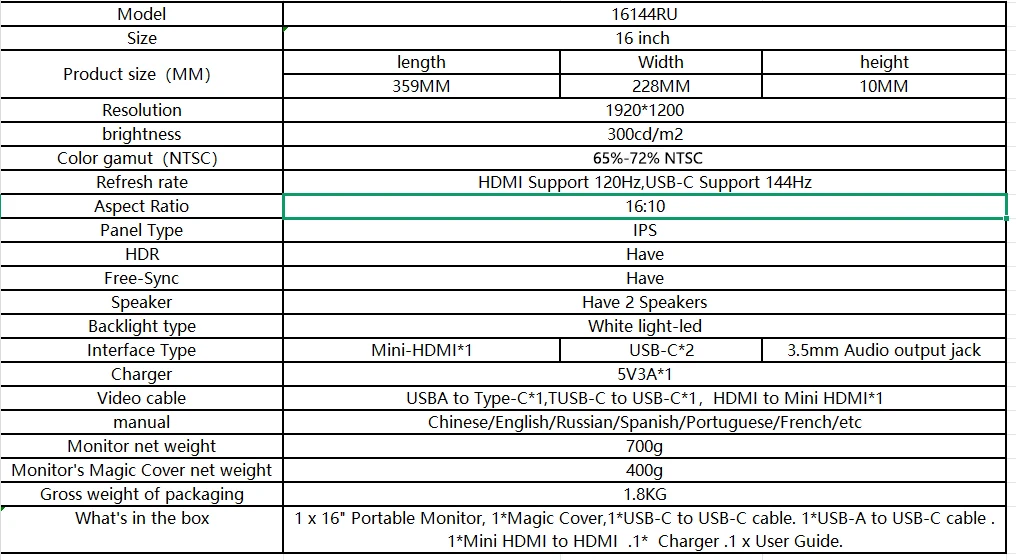
Experience stunning visuals and immersive entertainment with our ultra-thin 16-inch portable monitor featuring a 144Hz refresh rate and built-in dual stereo speakers. This monitor offers a high-quality IPS screen with a 16:10 display ratio, making it perfect for on-the-go productivity or entertainment.
Monitor Parameters:
1.HD 16 1920×1200 Non- touch
Material: ABS
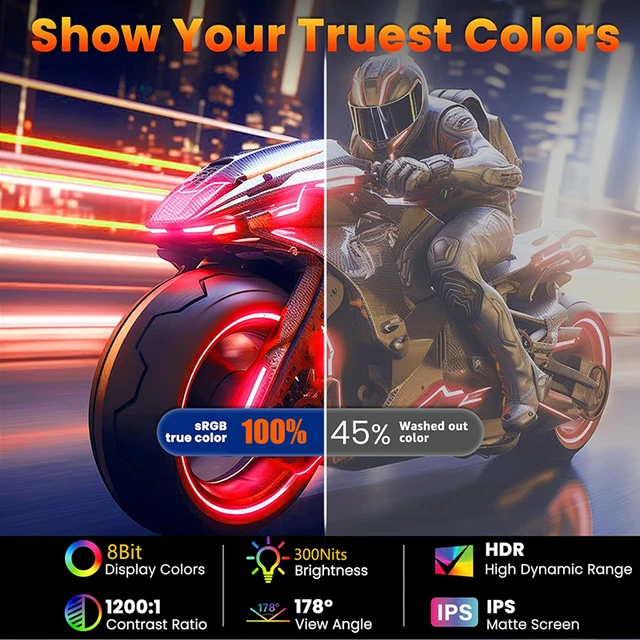
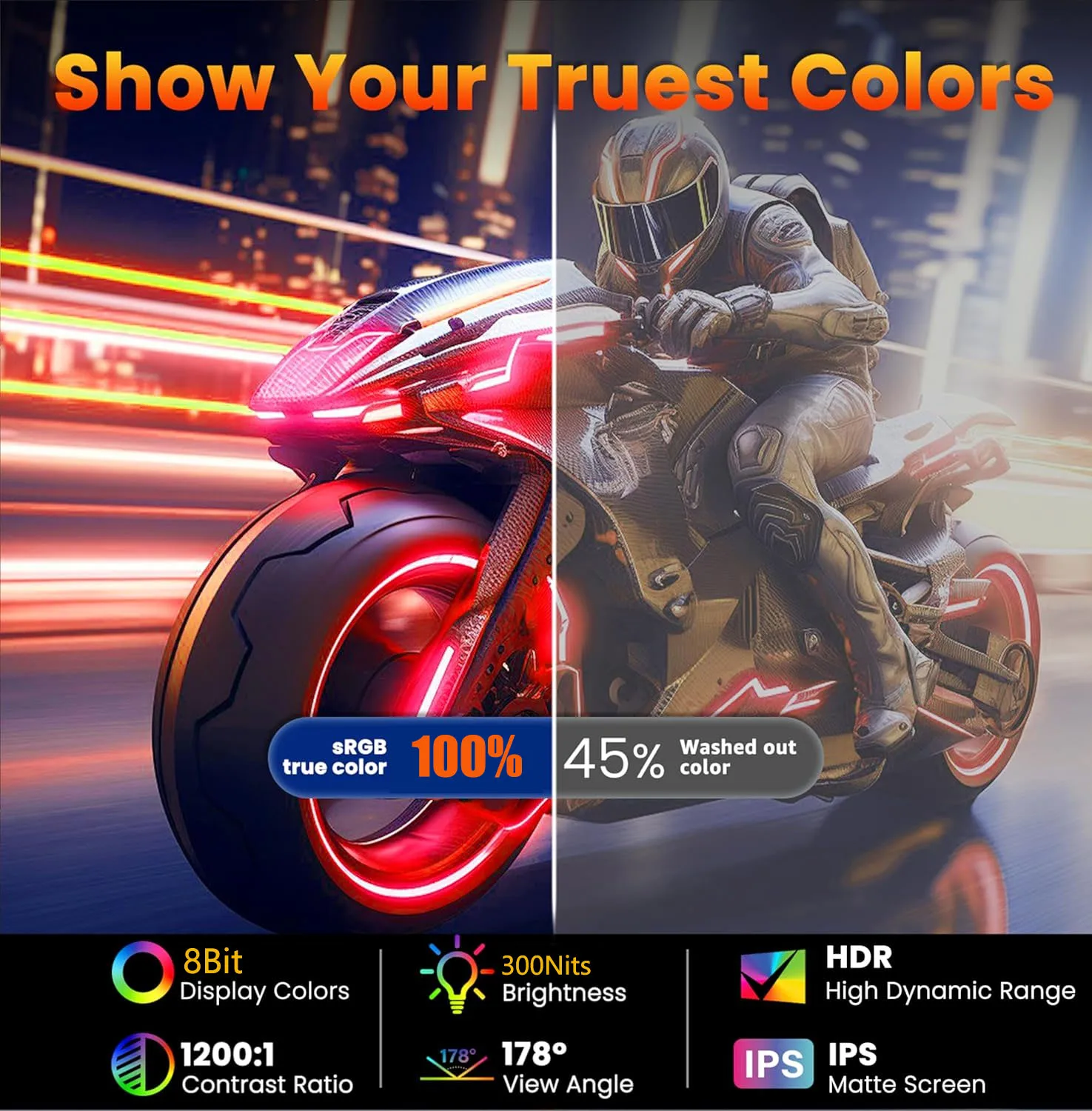
Panel Type: IPS
Reflash Rate: 144Hz
Screen Ratio: 16:10
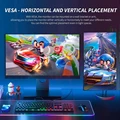
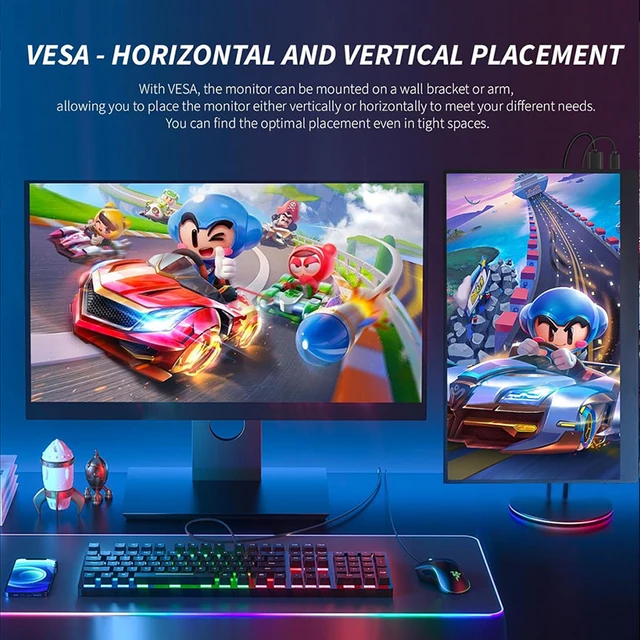
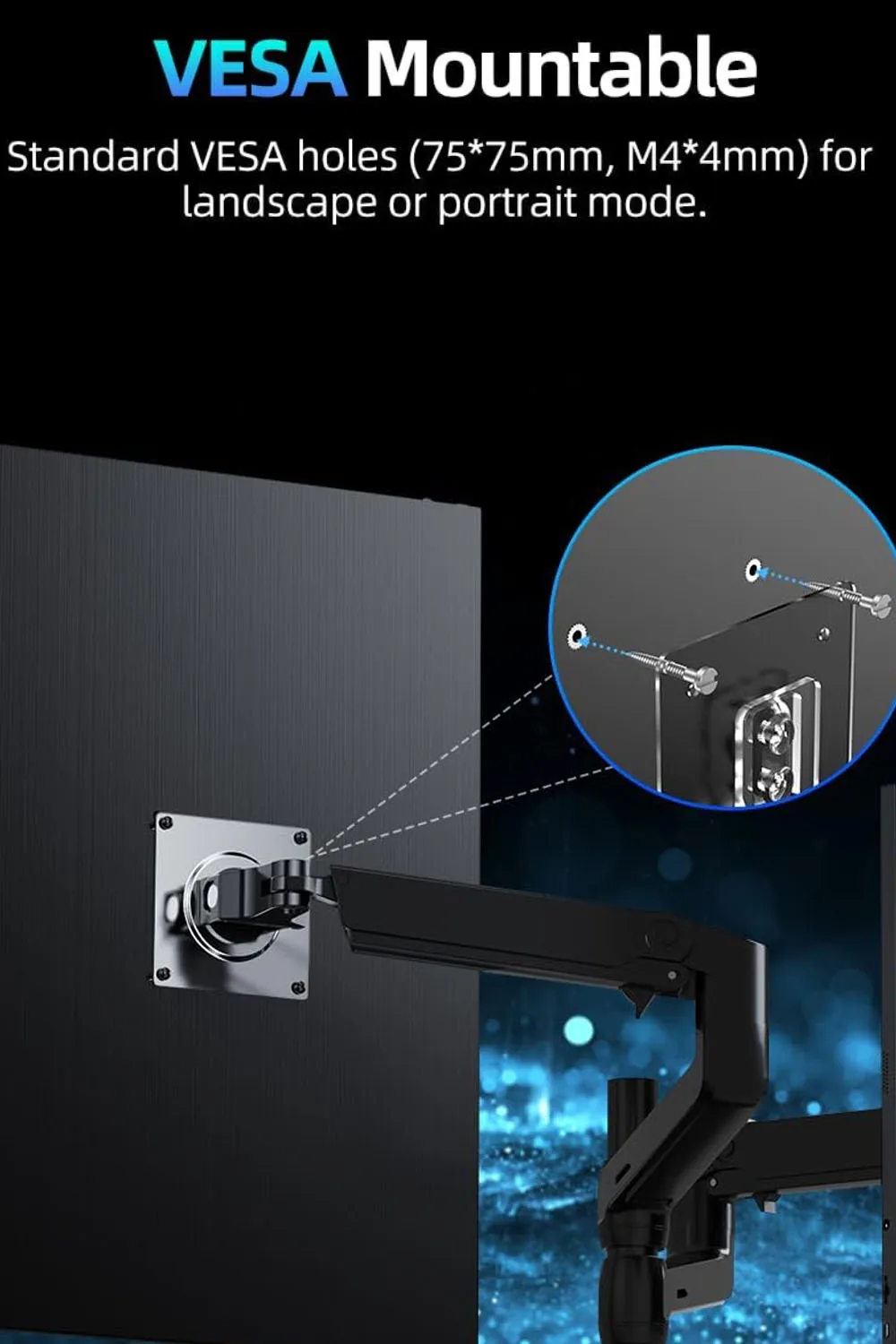
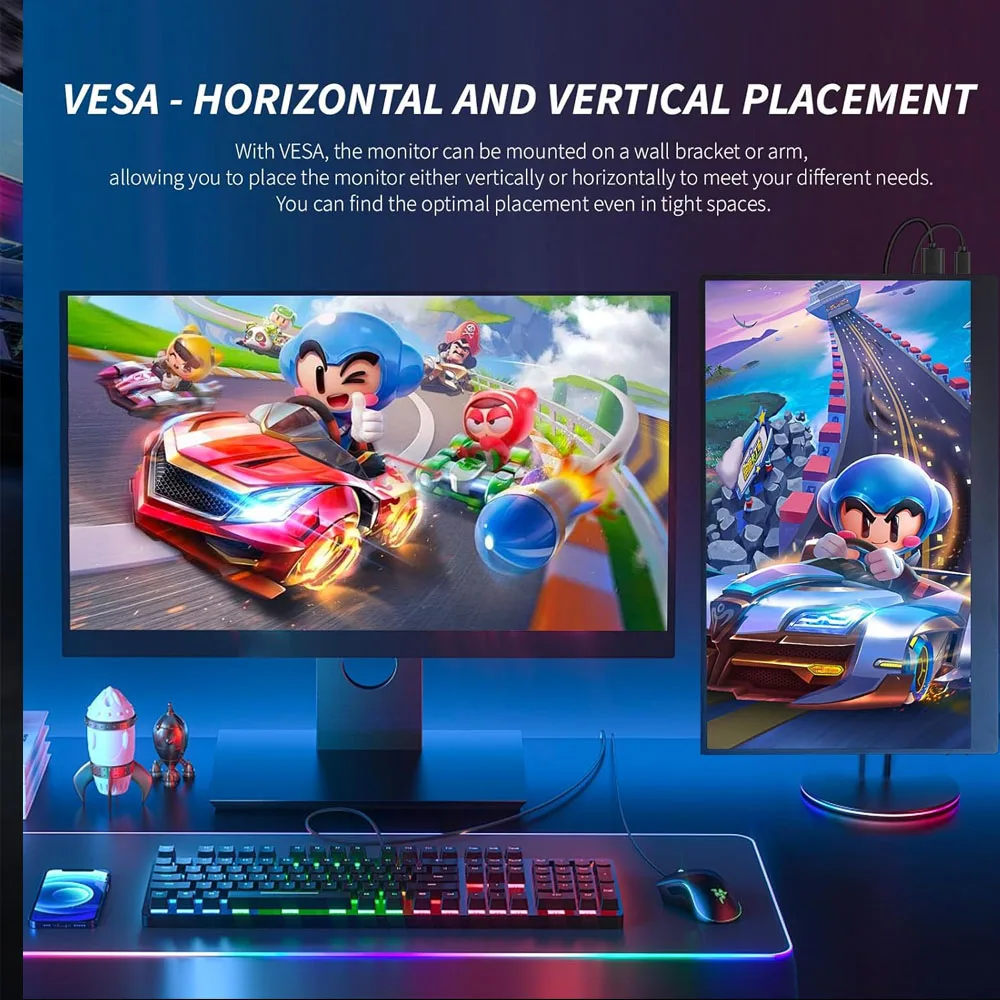
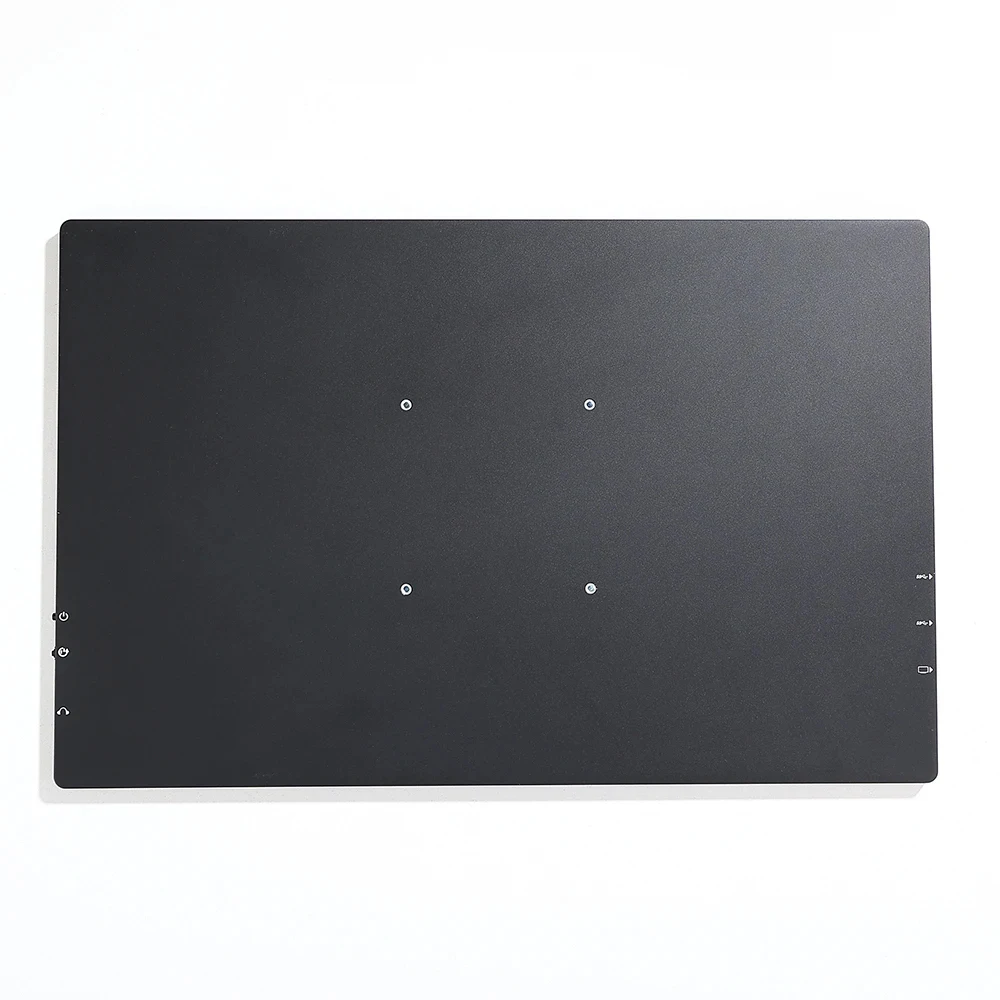
VESA:75*75MM
Response Time: 1ms
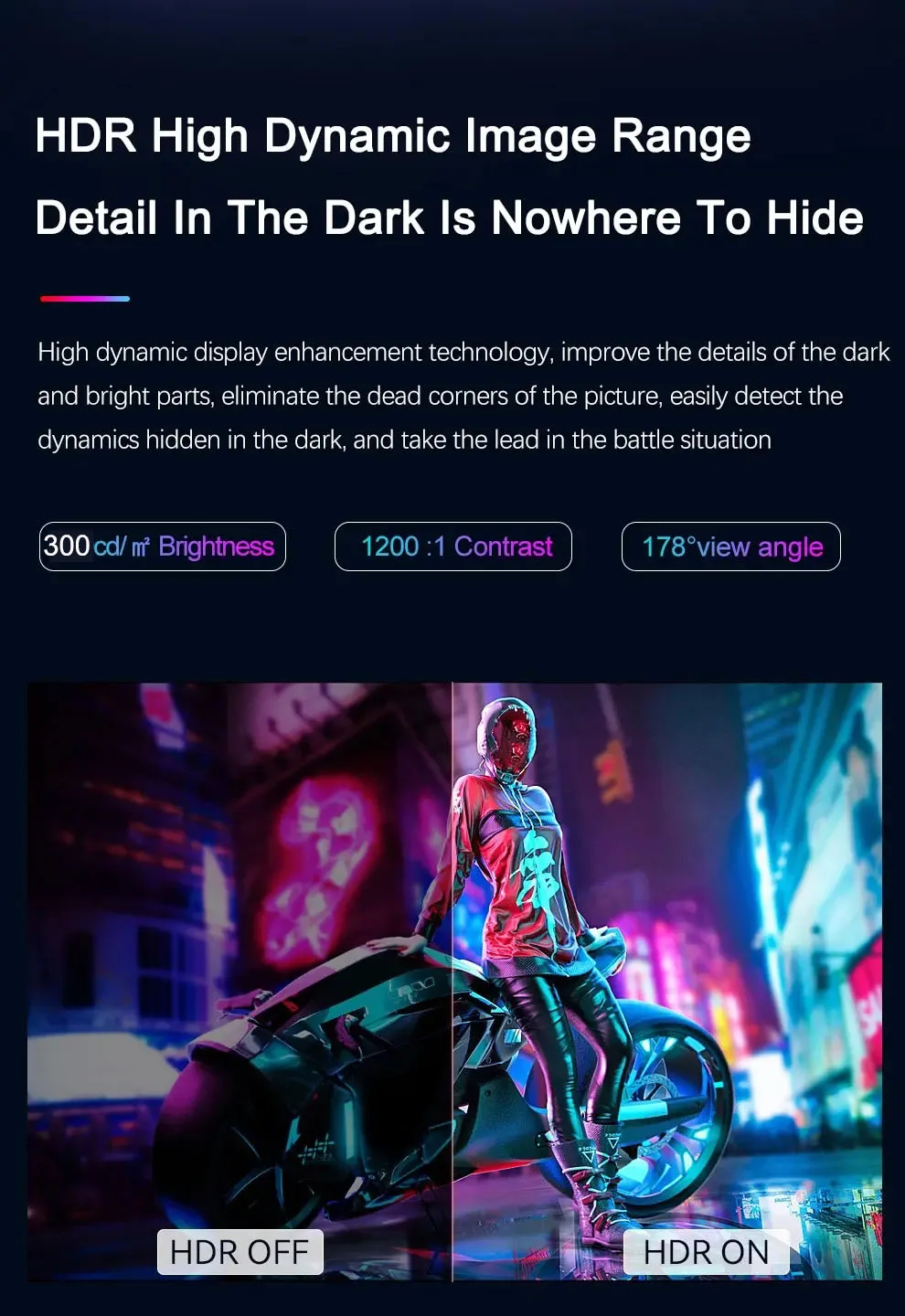
Brightness: 300cd/m
Contrast: 1200:1
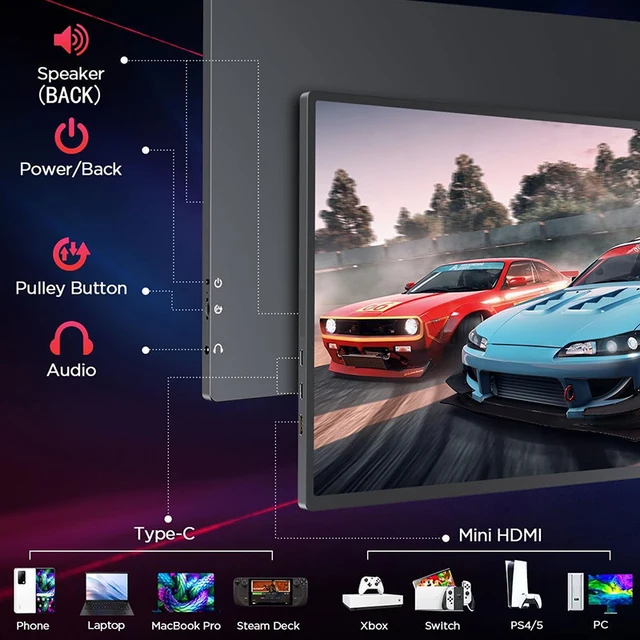
Speaker: Built-in Dual Stereo Speakers
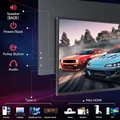
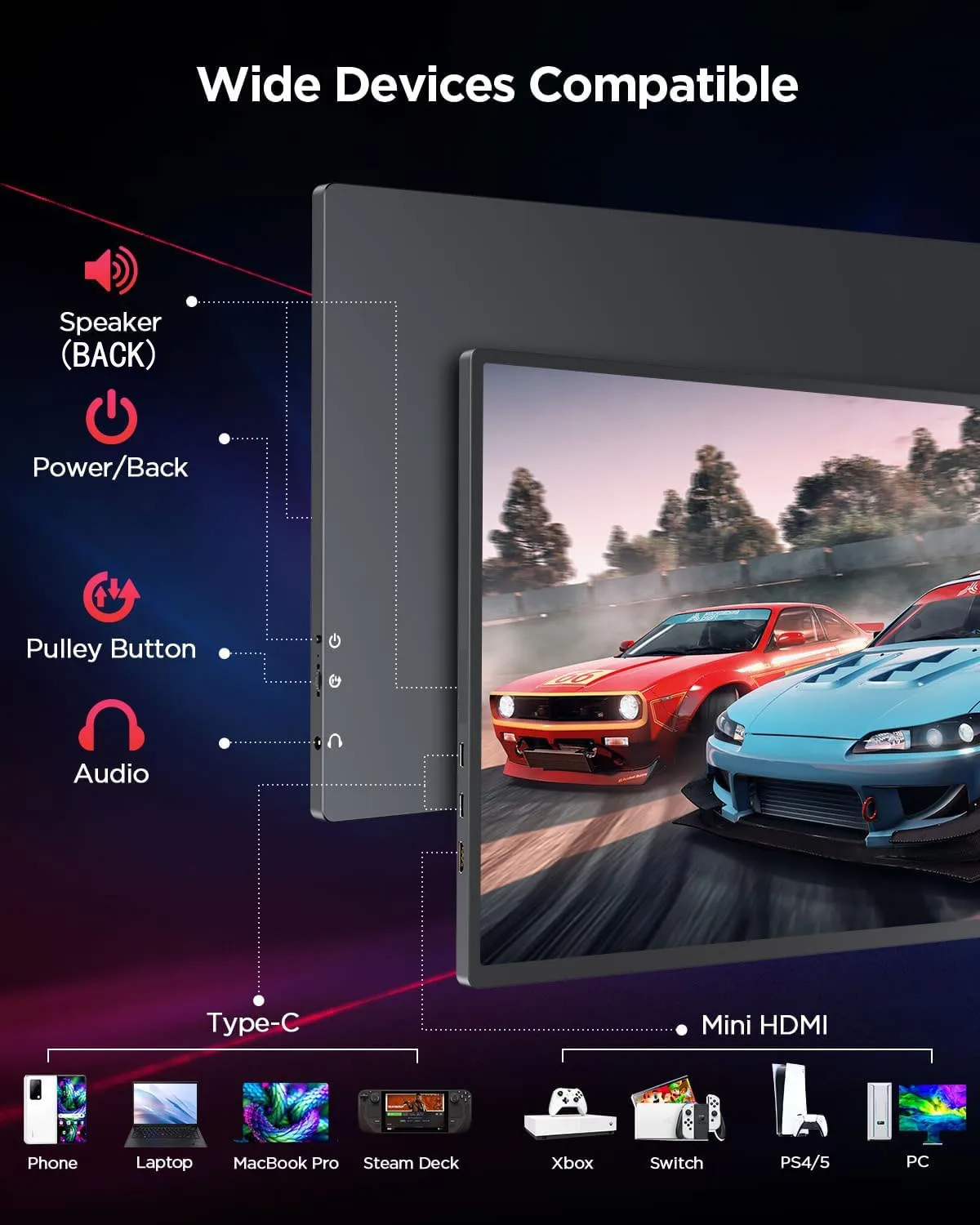
Multi-interface: Mini-HDMI*1,USB-C*2,3.5mm Audio output jack
Monitor Features:
Ultra-thin And Portable
USB 2.0: OTG Support
Dual Type-C Ports: Plug And Play Support
No Driver Required
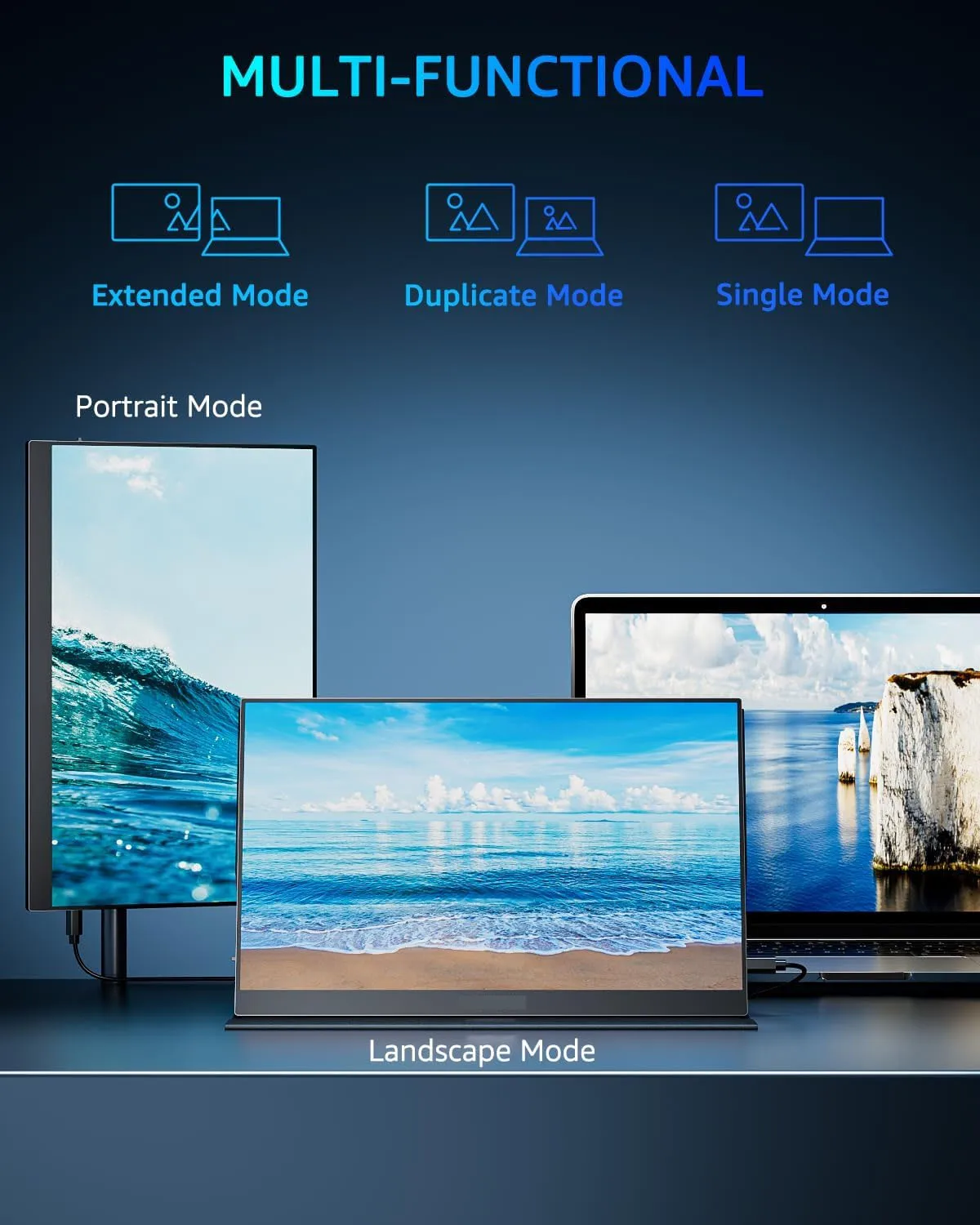
Compatible: Mirror Mode, Extended Mode And Portrait Mode
With Protective Case
Pay Attentions!
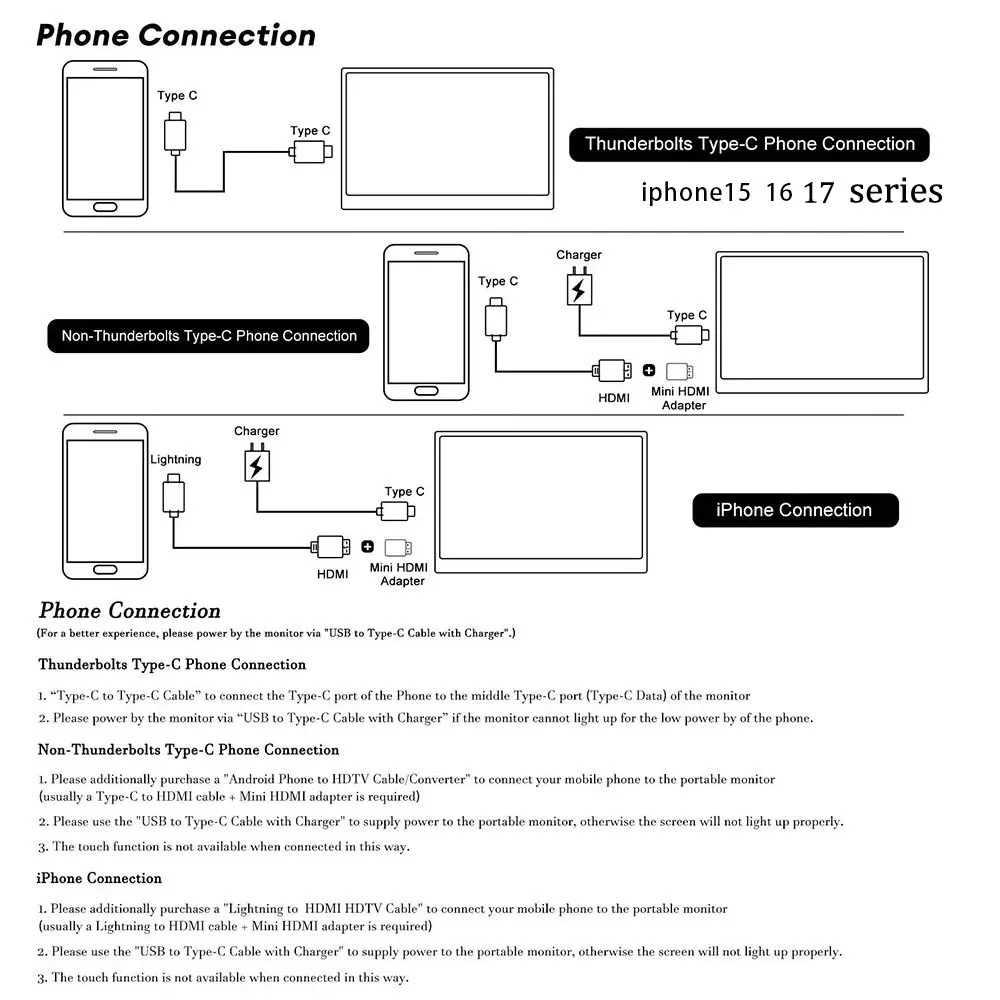
If your mobile phone support Thunderbolt Type-C function.
That you can connect directly use Type-C for the signal and data transfer and touch function.
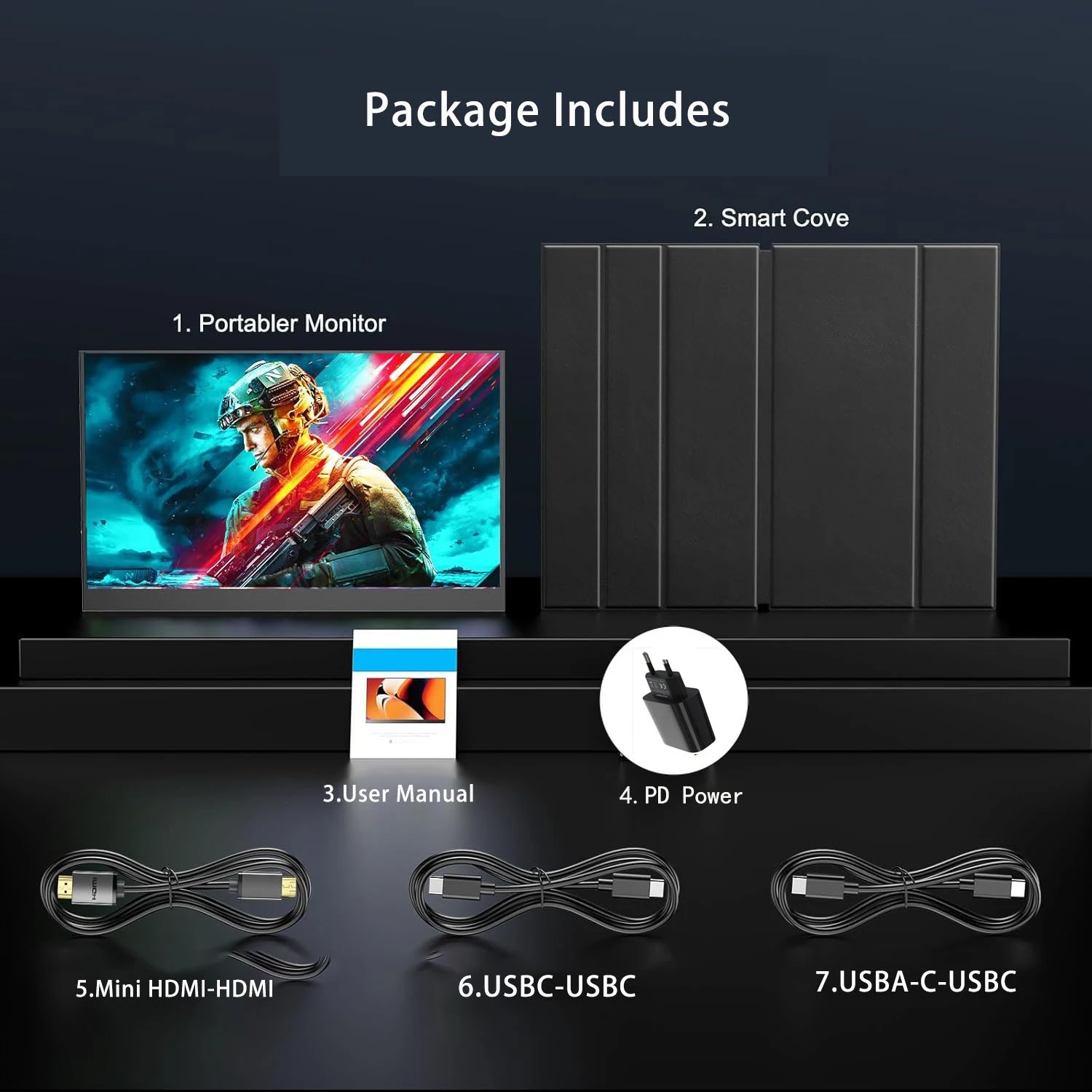
Package:
1 x 16" Portable Monitor
1*Magic Cover
1*USB-C to UB-C cable
1*USB-A to UsB-C cable
1*Mini HDMl to HDMl
1* Charger
1 x User Guide.
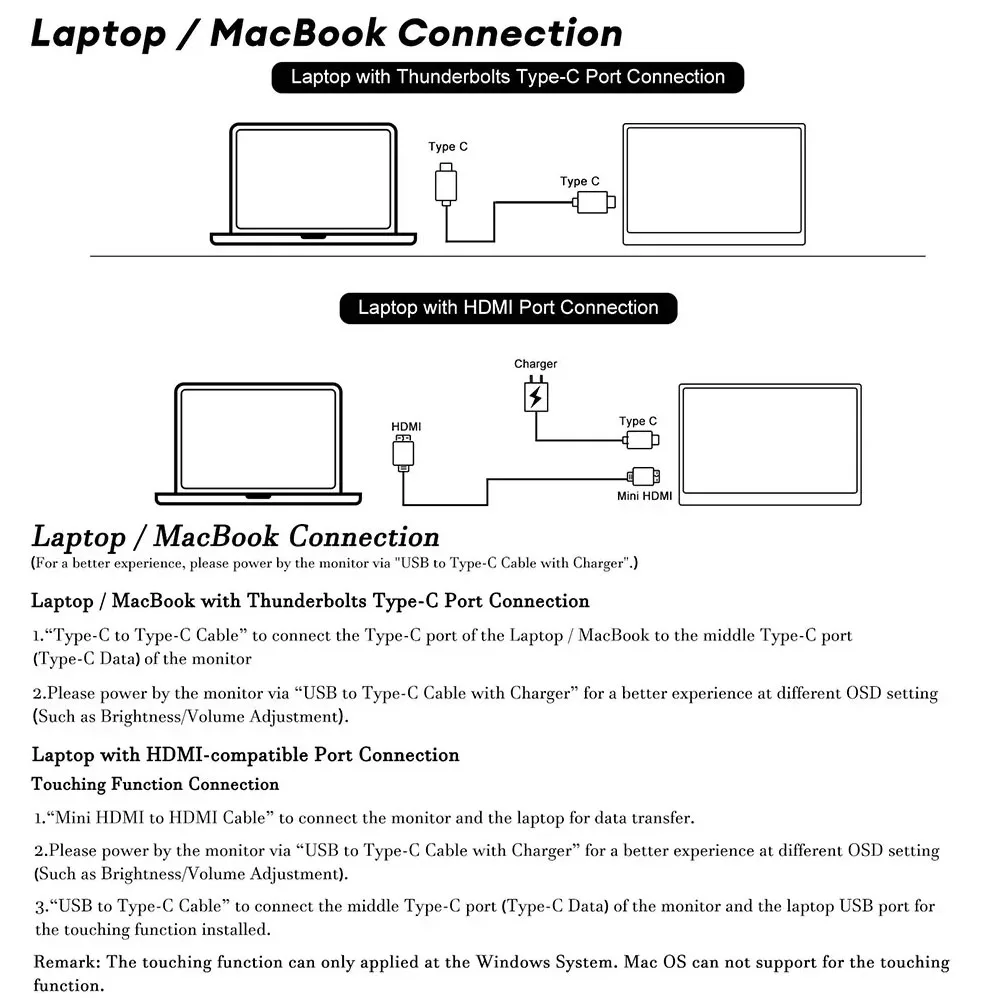
How to connect a 16-inch monitor
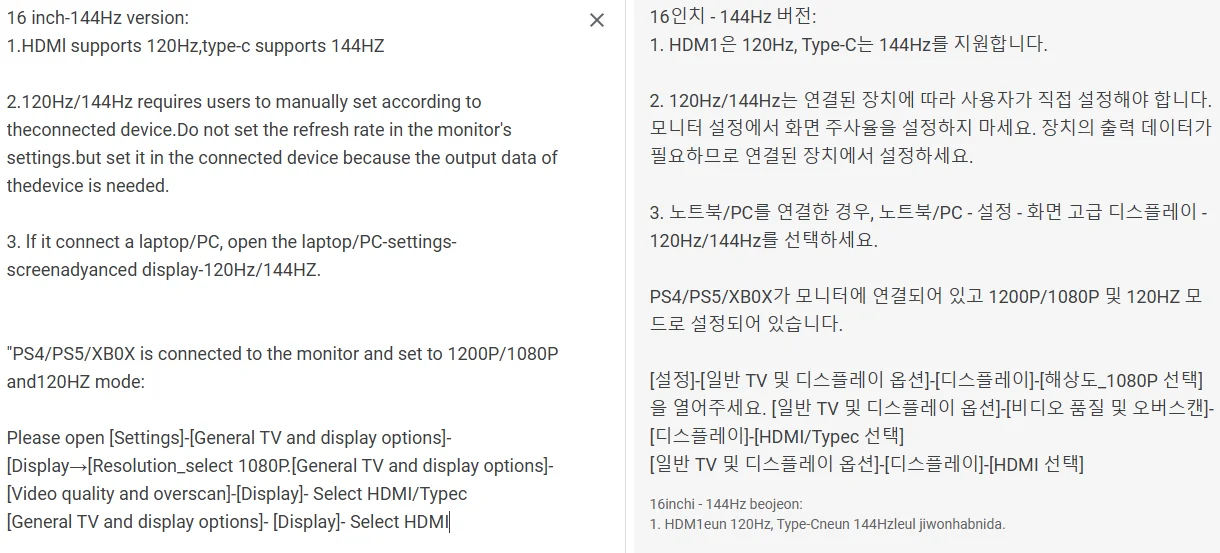
16 inch-144Hz version:
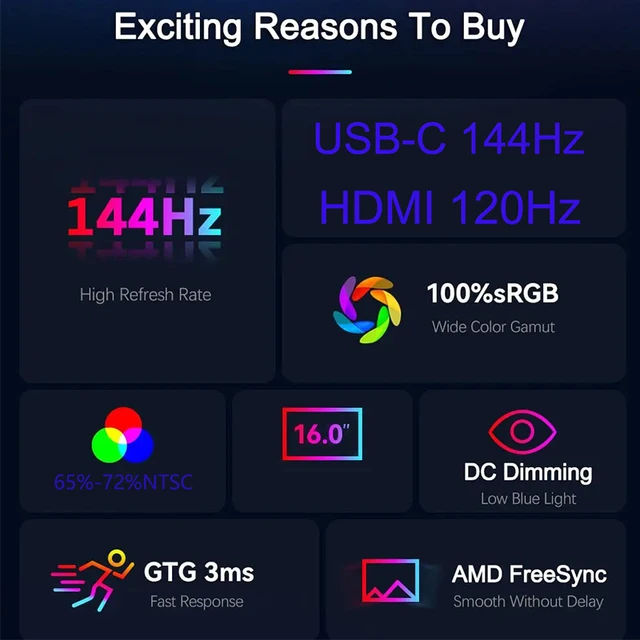
1.HDMl supports 120Hz,type-c supports 144HZ
2.120Hz/144Hz requires users to manually set according to theconnected device.Do not set the refresh rate in the monitor's settings.but set it in the connected device because the output data of the device is needed.
3. lf it connect a laptop/PC, open the laptop/PC-settings-screenadyanced display-120Hz/144HZ.
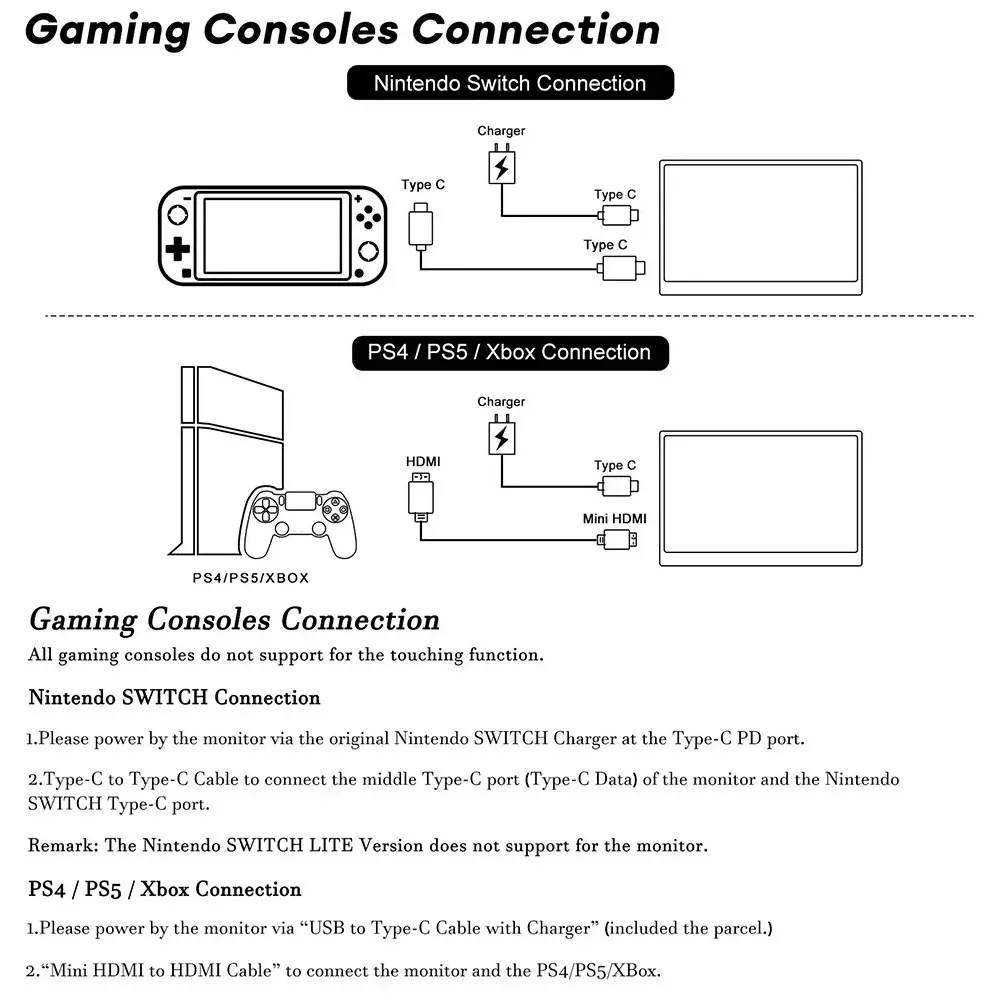
"PS4/PS5/XB0X is connected to the monitor and set to 1200P/1080P and120HZ mode:
Please open [Settings]-[General TV and display options]- [Display→[Resolution_select 1080P.[General TV and display options]- [Video quality and overscan]-[Display]- Select HDMI/Typec
[General TV and display options]- [Display]- Select HDMI
NOTE:
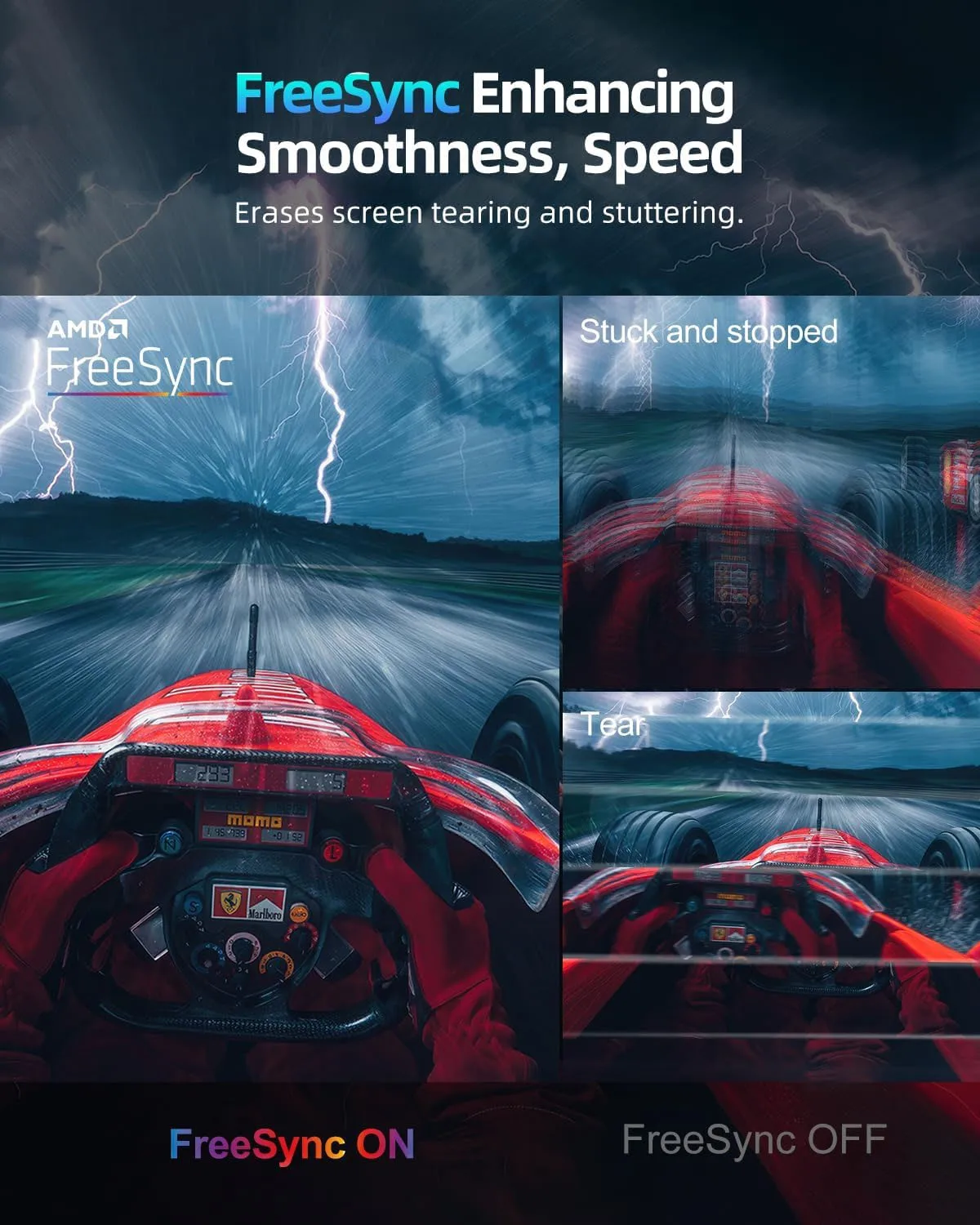
FREESYNC:
NVIDIA cards support Type-C
AMD cards support HDMI
Monitor FAQ – Common Troubleshooting
Q: The screen displays "blue no signal"
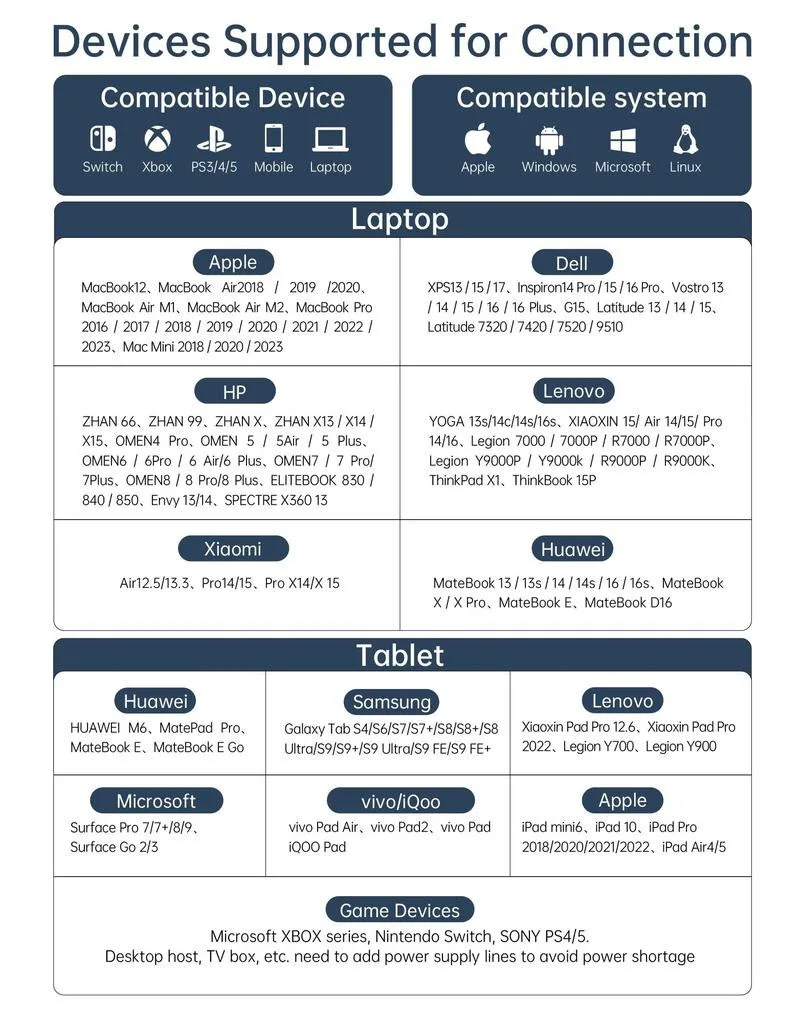
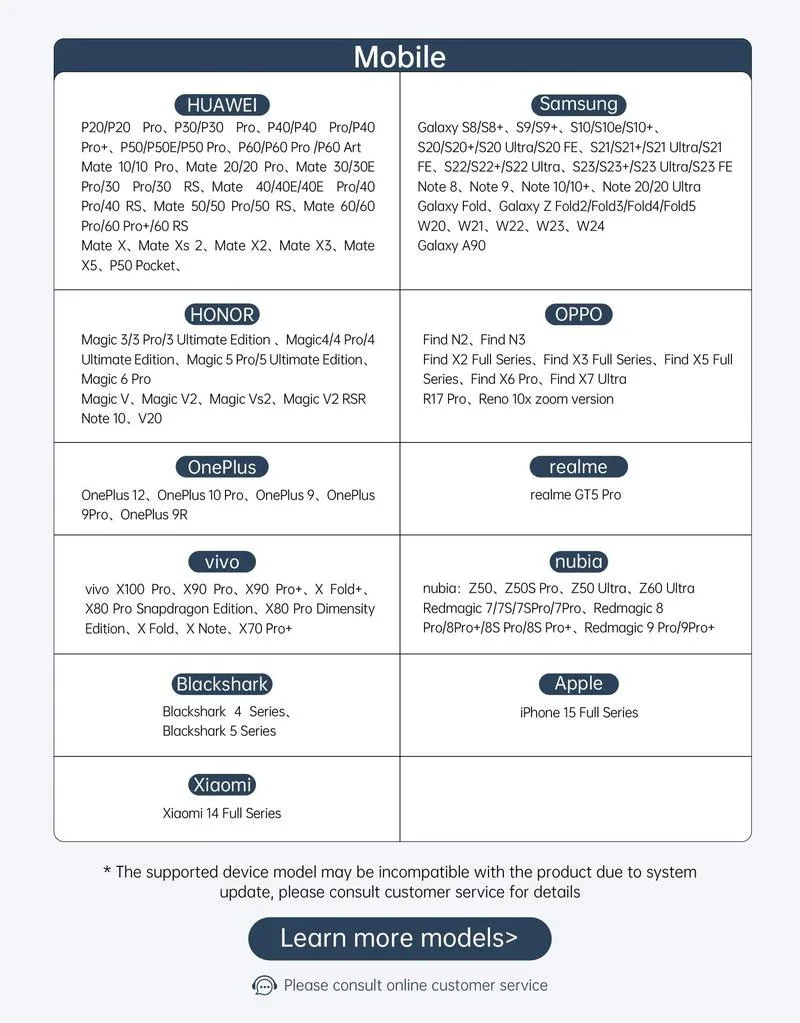
A: If you use a mobile phone to connect, you need to check whether the phone supports USB3.1 version output, whether it supports DisplayPort alternative mode (DP Alt Mode), and whether it supports MHL protocol mode. If not, it may be incompatible. You can use some converters for compatibility, such as: HD adapter cable. If not, it will display a blue no signal state. Please add a Mini HDMI to HDMI cable for signal transmission. If you use HDMI connection, you need to check whether your graphics card is connected correctly. As long as it displays blue no signal, it proves that there is no problem with the monitor, but there is no signal input. If there is a discrete graphics card, you must connect the discrete graphics card.
Q: Do I need to connect the power supply when using it?
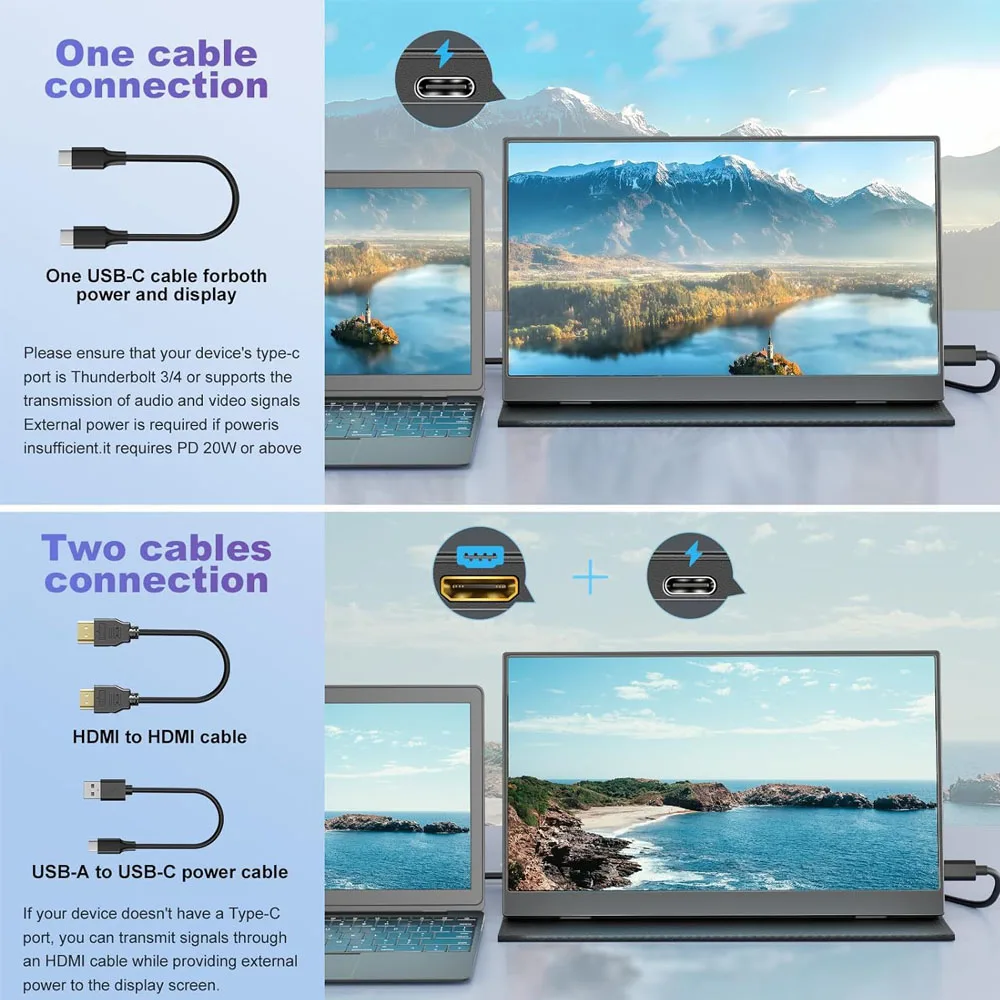
A: The laptop uses a TPYE-C connection cable and does not need to be connected to the power supply. If the power supply is insufficient, the screen will flicker and USB power supply is required. If you use HDMI connection, you must use USB power supply. If the screen flickers, it may be insufficient power supply.
Q: What is the reason for the screen flickering?
A: The screen flickering is caused by insufficient output or power supply of your device. It is recommended to use a 30W or higher PD power supply.
Q: Does it support vertical screen:
A: The monitor itself does not have the vertical screen function, so it does not support vertical screen. These functions can only be set on the mobile phone. The monitor only provides display functions. Unless you set the mobile phone to computer mode or set the vertical screen on the computer, the monitor itself does not support vertical screen.
Q: Does it support touch function?
A: This product is non-touch version. Our store also offers other models of touchscreen portable monitors, which you can choose from when you visit the store.
Q: My monitor cannot turn on.
A: Please check whether the monitor and your device are in power-on mode. Make sure the cable is connected correctly. Connect other available devices or cables to check.
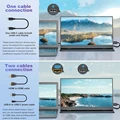
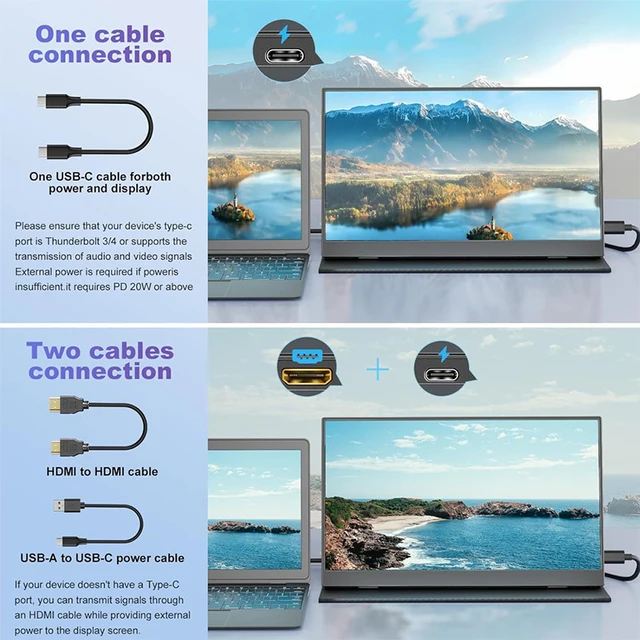
If you use the USB-C interface connection: You can use the USB-C cable to achieve power supply and signal transmission (one line for two purposes, also known as one line pass) and get power directly from the laptop. If you use the HDMI interface connection, you must use a two-wire connection solution. The HDMI cable is only responsible for video signal transmission. You need an additional power supply solution. You can choose one of the following methods:
A1: Powered by a power adapter connected to the socket (30W and above PD power is recommended)
A2: Powered from the computer USB through a separate USB cable (If the computer USB power supply is insufficient, it may cause false alarms such as insufficient brightness, flickering, black screen, etc. It is recommended to use a 30W and above PD power supply).
Q: Why is my screen flickering?
A: Please check if the connection is loose. If there is no problem with the connection, the screen flickering is caused by insufficient output of your device or power supply. It is recommended to use a 30W or higher PD power supply. Please connect the adapter and use it again, or try to replace a new cable and device.
Q: Why does the monitor make an electric current sound or a rustling sound?
A: Please confirm the source of the noise. If it is a connection noise, please re-plug the interface or replace a new cable. If it is the sound of the adapter or speaker, it may be due to the quality problem of the power adapter.
Q: Why is my touch screen not working?
A1: When purchasing, please make sure you choose whether the purchase supports touch function.
A2: Check the connection: For laptops/desktops, connect both the HDMI and touch cables (included). For USB-C interfaces, your port must support Type-C 3.1+/Thunderbolt 3.
A3: Mobile phone compatibility: Supports direct screen projection, but may not support touch in desktop/extended mode.
A4: Best practice: Always connect: √HDMI cable, √ power cable, √ touch cable
A5: Computer system compatibility: Supports direct screen projection, or setting the touch screen as the main screen may not allow accurate touch, or support touch in secondary or extended mode.
Q: Does this computer monitor support VESA wall mounting?
A: Supports VESA wall mounting
Q: Are there speakers?
A: Yes, with built-in speakers.
Q: Does it support Apple phones?
A: Basically not. However, after testing, the iPhone 15 PRO can project the screen, but does not support vertical screen and touch functions.





Follow us on: